• WHO WE ARE
  • WHAT WE DO
    • Salesforce
      • Implementations
        • Sales Cloud
        • Service Cloud
        • CPQ
      • Developments
        • Salesforce Customization
        • Custom Application Development
        • AppExchange Product Development
      • Migrations
        • Classic to Lightning Migration
        • Other Systems to Salesforce Migration
      • Integrations
    • Field Service Solutions
      • Field Service for Enterprises
      • Field Service for SMBs
    • AI/ML Solutions
      • Agentic AI
    • NetSuite Consulting Services
    • App Development
  • HOW WE DO
    • Delivery Model
    • Our Works
    • Events
      • Employee Empowerment Series
      • Employee Engagement Series
      • Knowledge Sharing Sessions
  • REACH US
    • Contact Us
    • Careers
  • BLOG
    • WHO WE ARE
    • WHAT WE DO
      • Salesforce
        • Implementations
          • Sales Cloud
          • Service Cloud
          • CPQ
        • Developments
          • Salesforce Customization
          • Custom Application Development
          • AppExchange Product Development
        • Migrations
          • Classic to Lightning Migration
          • Other Systems to Salesforce Migration
        • Integrations
      • Field Service Solutions
        • Field Service for Enterprises
        • Field Service for SMBs
      • AI/ML Solutions
        • Agentic AI
      • NetSuite Consulting Services
      • App Development
    • HOW WE DO
      • Delivery Model
      • Our Works
      • Events
        • Employee Empowerment Series
        • Employee Engagement Series
        • Knowledge Sharing Sessions
    • REACH US
      • Contact Us
      • Careers
    • BLOG
  • [email protected]
  • (+91) 44-49521562
Merfantz - Salesforce Solutions for SMEs
  • WHO WE ARE
  • WHAT WE DO
    • Salesforce
      • Implementations
        • Sales Cloud
        • Service Cloud
        • CPQ
      • Developments
        • Salesforce Customization
        • Custom Application Development
        • AppExchange Product Development
      • Migrations
        • Classic to Lightning Migration
        • Other Systems to Salesforce Migration
      • Integrations
    • Field Service Solutions
      • Field Service for Enterprises
      • Field Service for SMBs
    • AI/ML Solutions
      • Agentic AI
    • NetSuite Consulting Services
    • App Development
  • HOW WE DO
    • Delivery Model
    • Our Works
    • Events
      • Employee Empowerment Series
      • Employee Engagement Series
      • Knowledge Sharing Sessions
  • REACH US
    • Contact Us
    • Careers
  • BLOG

Salesforce: Setup Passkey For Users

Salesforce Passwordless Login: How to Set Up Passkeys
  • September 10, 2026
  • Gobinath
  • Salesforce Admin Tutorial, Salesforce Consulting
  • 0

To make logging into Salesforce faster and more secure, we have enabled passwordless login using passkeys for your organization.
This allows you to log in using your device’s built-in security, such as a fingerprint, facial recognition, or a PIN.

Admin Setup Completed

The backend Identity Verification setup has already been completed in your Salesforce org. You only need to follow the steps below to configure your own device and profile.
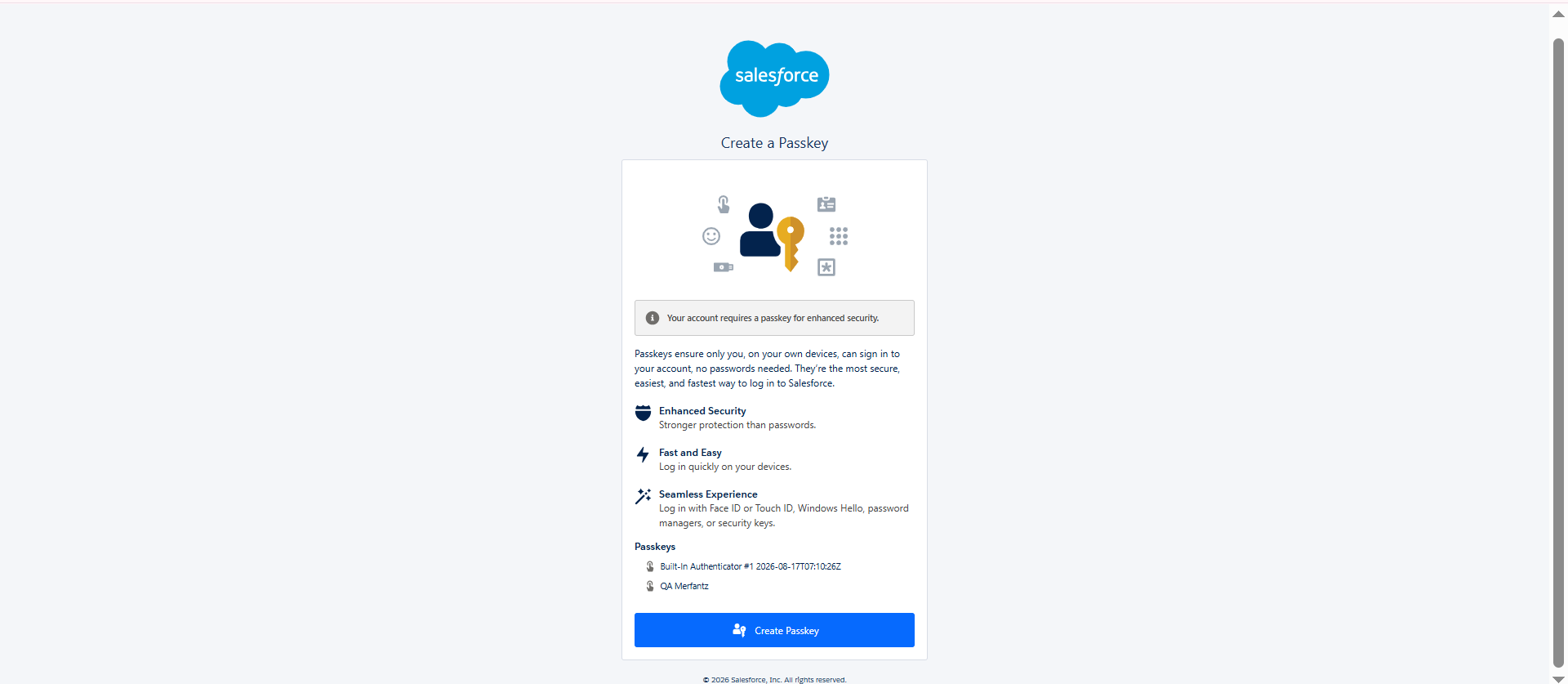
Create a Passkey

Step 1: Prepare Your Device

Before registering your passkey in Salesforce, make sure your computer is set up to use a PIN or biometric login.
Choose the section below that matches your device.

For Windows Users

  1. Open your computer’s Settings and click on Accounts.
  2. Select Sign-in options.
  3. Set up a Windows Hello method. Choose either PIN, Fingerprint, or Face Recognition.

For Mac (Apple) Users

  1. Open System Settings or System Preferences.
  2. Click Touch ID & Password.
  3. Follow the on-screen prompts to add your fingerprint.
  4. Ensure your iCloud Keychain is enabled, as Apple requires this to safely store your passkeys.

For Google Password Manager Users (Chrome & Android)

If you’d rather store your passkey in your Google Account instead of relying on Windows Hello or Touch ID, you can use Google Password Manager.

This is a great option if you switch between devices often, since your passkey syncs across any device where you’re signed into Chrome.

  1. Open Google Chrome and make sure you’re signed in to your Google Account. Click your profile icon in the top-right corner to check.
  2. Go to Settings → Autofill and passwords → Google Password Manager. You can also go directly to passwords.google.com.
  3. Click Settings in the left-hand menu of Password Manager.
  4. Under “On-device encryption,” confirm that passkeys are enabled to sync with your Google Account.
  5. If prompted, set up a screen lock such as a PIN, pattern, fingerprint, or face unlock. Google Password Manager uses this to protect your saved passkeys.
  6. Once set up, Google Password Manager will automatically appear as a login option whenever a website, including Salesforce, asks you to create or use a passkey.

Step 2: Register Your Passkey in Salesforce

Once your device or Google Password Manager is ready, link it to your Salesforce profile.

  1. Log in to Salesforce and click your Profile icon in the top-right corner.
  2. Click Settings, then navigate to Advanced User Details on the left-hand menu.
  3. Scroll down to the Built-in Authenticator section and click Add.
  4. Click Verify.
  5. A security prompt will pop up. Complete it using the method you set up in Step 1, such as Windows PIN, Face ID, Mac Touch ID, or Google Password Manager.
  6. Once successfully verified, click Save.

Success!

You can now use your passkey to log in to Salesforce quickly and securely — no password required.

Which Option Should You Choose?
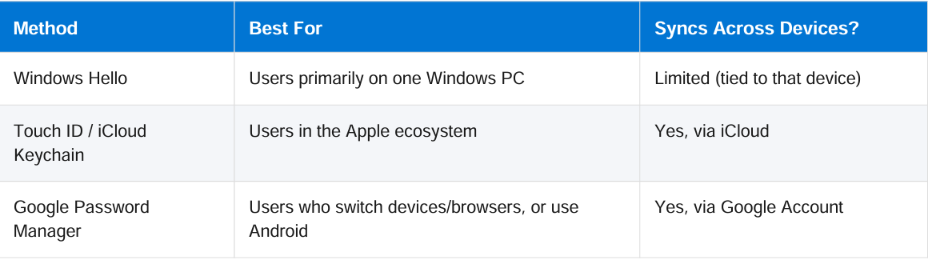
Salesforce Passkey Setup

Whichever method you choose, the result is the same: faster logins, stronger security, and one less password to remember.

Author Bio

Gobinath
My Profile | + Recent Posts

Co-Founder & CMO at Merfantz Technologies Pvt Ltd | Marketing Manager for FieldAx Field Service Software | Salesforce All-Star Ranger and Community Contributor | Salesforce Content Creation for Knowledge Sharing

  • How a Manufacturing Company Improved Sales with Salesforce
    September 1, 2026
    Case Study: How a Manufacturing Company Improved Sales with Salesforce
  • August 25, 2026
    How to Integrate Salesforce with Your Website or App
  • August 18, 2026
    How to Automate Workflows in Salesforce: Step-by-Step Guide
  • August 11, 2026
    Top 5 Mistakes to Avoid During Salesforce Implementation
Tags: Passwordless LoginSalesforce AuthenticationSalesforce Built-in AuthenticatorSalesforce Login SecuritySalesforce PasskeySalesforce Passkey SetupSalesforce Passwordless AuthenticationSalesforce Passwordless Login

Gobinath

Co-Founder & CMO at Merfantz Technologies Pvt Ltd | Marketing Manager for FieldAx Field Service Software | Salesforce All-Star Ranger and Community Contributor | Salesforce Content Creation for Knowledge Sharing
https://www.salesforce.com/trailblazer/gobinath
  • Next Case Study: How a Manufacturing Company Improved Sales with Salesforce
Merfantz Technologies is a leading Salesforce consulting firm dedicated to helping small and medium enterprises transform their operations and achieve their goals through the use of the Salesforce platform. Contact us today to learn more about our services and how we can help your business thrive.

Discover More

Terms and Conditions
Privacy Policy
Cancellation & Refund Policy
Information Security Policy

Contact Info

  • No 96, 2nd Floor, Greeta Tech Park, VSI Industrial Estate, Perungudi, Chennai 600 096, Tamil Nadu, INDIA
  • (+91) 44-49521562
  • [email protected]
  • 9:30 IST - 18:30 IST

Latest Posts

Salesforce Passwordless Login: How to Set Up Passkeys
Salesforce: Setup Passkey For Users September 10, 2026
How a Manufacturing Company Improved Sales with Salesforce
Case Study: How a Manufacturing Company Improved Sales with Salesforce September 1, 2026
How to Integrate Salesforce with Your Website or App August 25, 2026

Copyright @2023 Merfantz Technologies, All rights reserved