
3 min read
Overview
The Geo Tab and Gantt Map View help Dispatchers track technicians, view their current location, and understand their planned routes for the day.
This allows Dispatchers to make better decisions when assigning new or urgent Jobs based on the technician’s current location, scheduled Jobs, route, distance, and estimated travel time.
1. View Technician Locations on the Geo Tab
The Geo Tab provides a map view of the technicians and their current locations.
Steps
- Open the Geo tab from the main menu.
- The map displays the available technicians as location pins.
- Each pin represents the technician’s current location.
- Select or review the technician on the map to identify where they are currently located.
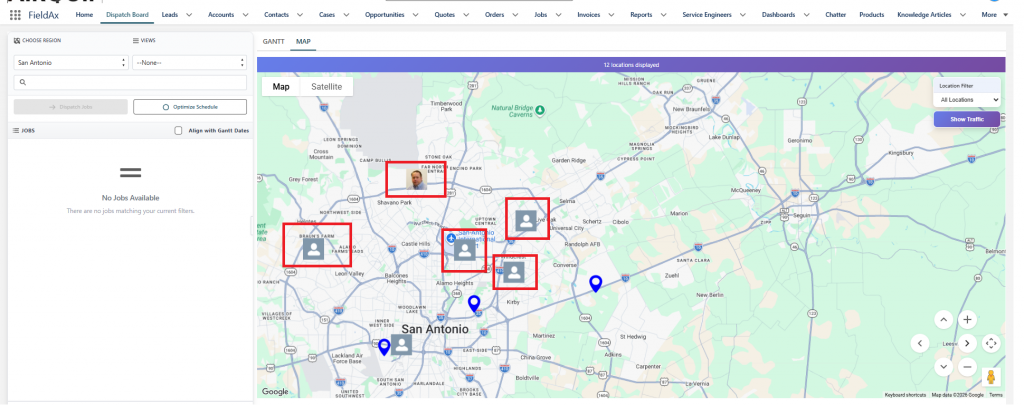
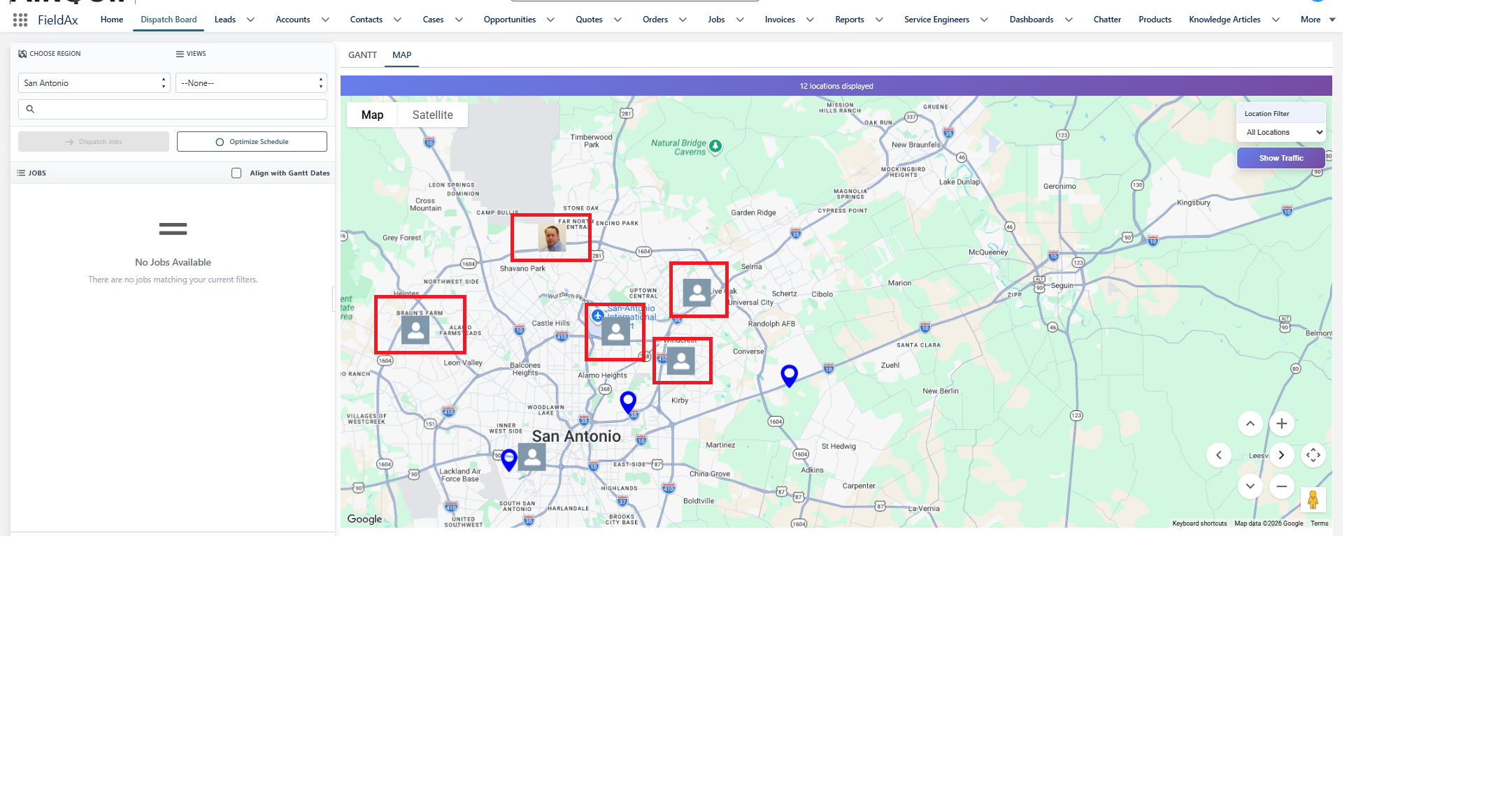
Geo Tab showing technicians at their current locations.
Why It Matters
The Dispatcher can quickly identify which technician is closest to a customer or a new Job and make an informed assignment without having to contact each technician.
2. View a Technician’s Route from the Gantt Page
The Gantt Page displays Service Engineers and their scheduled Jobs for the day. From the Gantt Page, the Dispatcher can open the technician’s Map view to see their route and current location.
Steps
- Open the Gantt tab.
- Locate the required Service Engineer from the list.
- Click on the technician’s name or icon.
- The technician’s profile window opens.
- Select the Map tab.
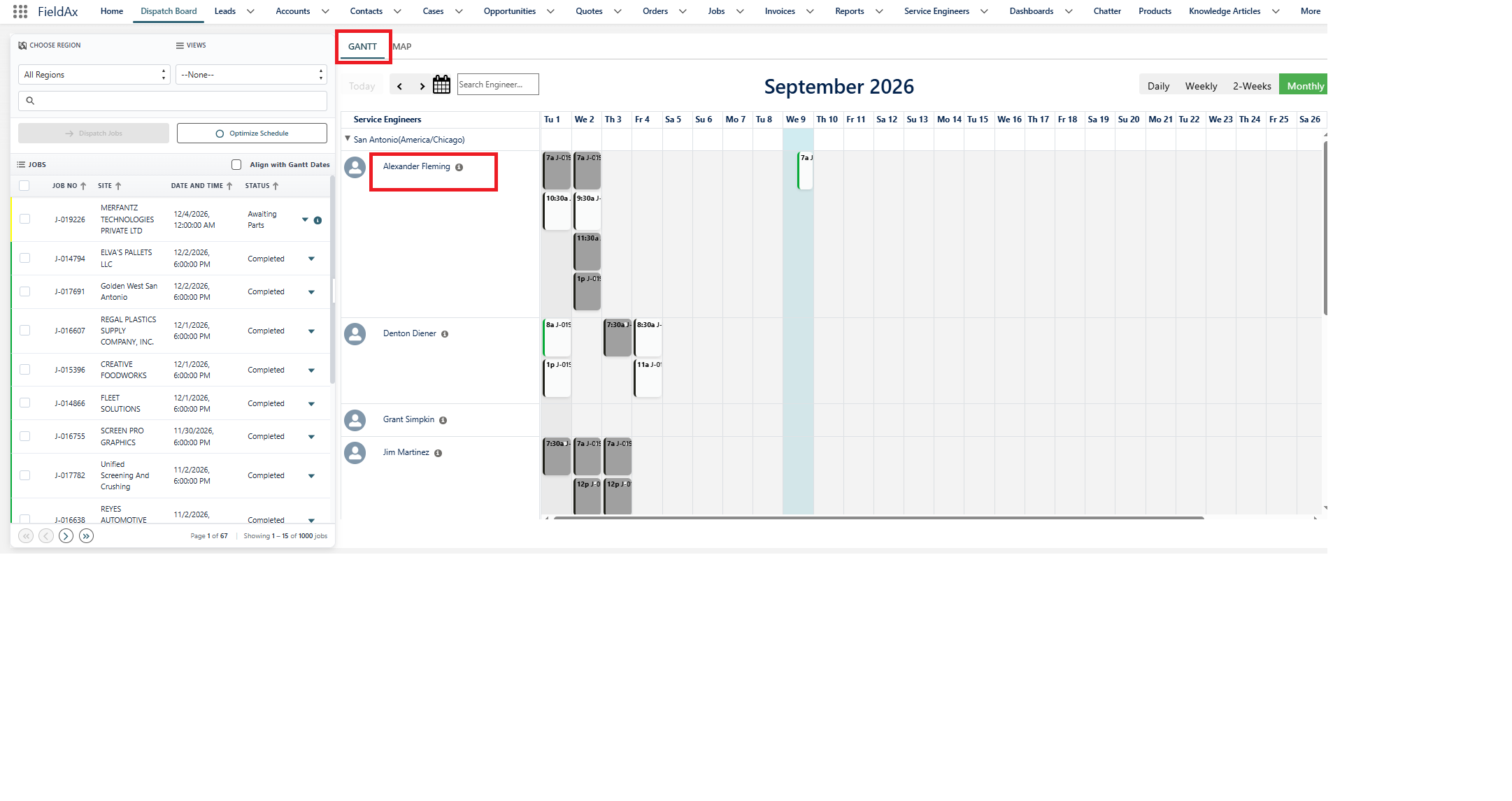
Gantt Page showing Service Engineers and their scheduled Jobs.
3. View Location and Job Route
The technician’s Map tab provides the following information:
- Current Location – Shows where the technician is currently located.
- Job Locations – Shows the Jobs assigned to the technician.
- Route – Displays the route between the technician’s current location and assigned Job locations.
- Distance & Travel Time – Shows the distance and estimated travel time to the next Job.
- Traffic – The Dispatcher can use the traffic option to consider current traffic conditions.
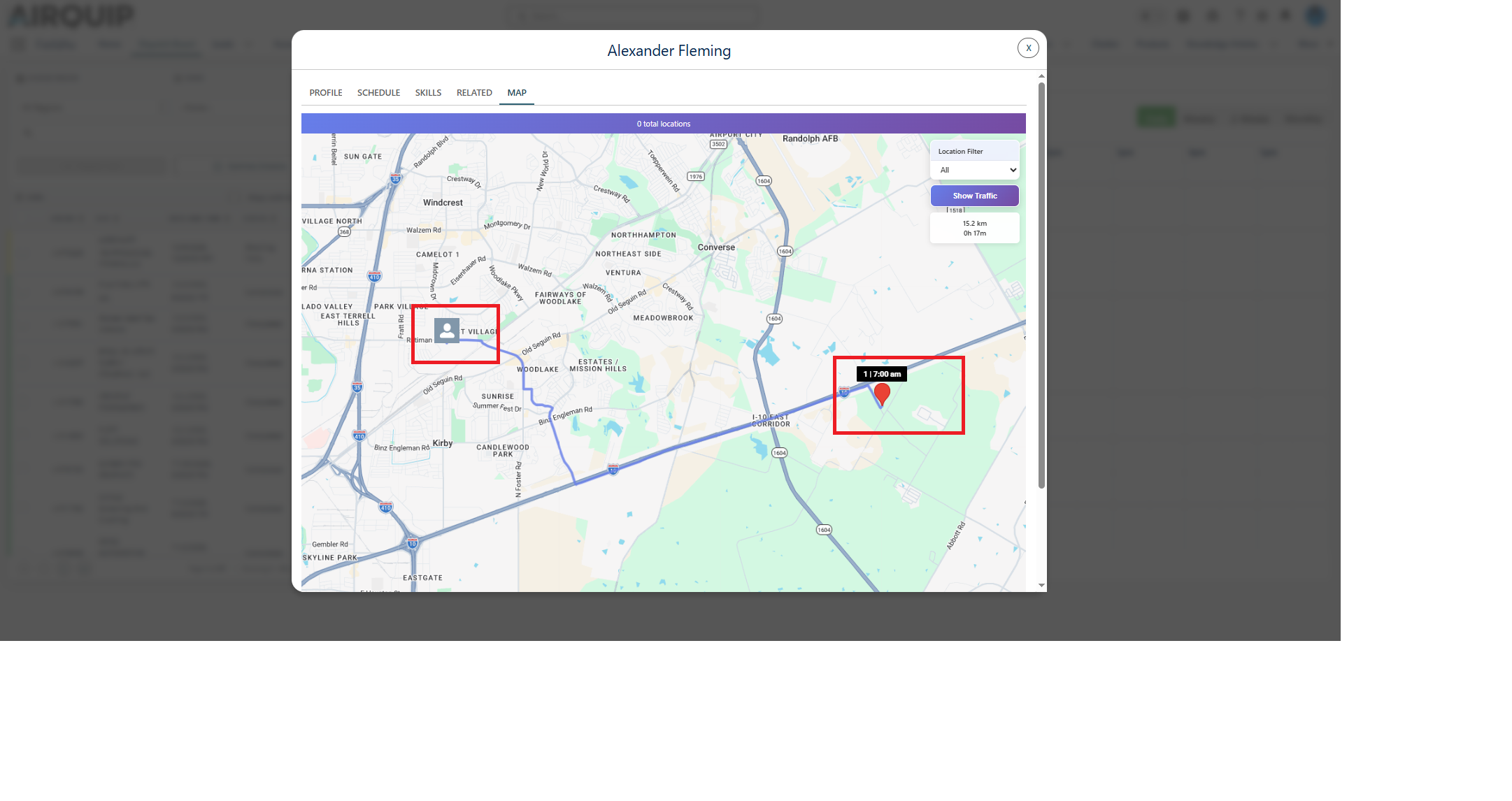
Technician Map view showing current location, Job route, distance, and travel time.
4. Use the Map for Job Assignment
The Geo Tab and Gantt Map View help Dispatchers make better scheduling decisions.
For example, the Dispatcher can:
- Identify the nearest technician for a new or urgent Job.
- Check the technician’s existing route before assigning another Job.
- Review the distance and estimated travel time to the next Job.
- Consider traffic conditions when planning the assignment.
- Reduce unnecessary travel and help improve on-time Job arrivals.
5. FieldAx Map View in Salesforce
The Geo Tab and Gantt Map View are available directly within Salesforce FieldAx.
Dispatchers can access technician locations and routes without using a separate tracking application. This keeps technician tracking, scheduling, Jobs, and other FieldAx information in one system.
Tracking Flow at a Glance
Geo Tab
↓
View Technician Current Location
↓
Open Gantt Page
↓
Select Service Engineer
↓
Open Map Tab
↓
View Current Location + Assigned Jobs + Route
↓
Check Distance / Travel Time / Traffic
↓
Make Informed Job Assignment
Important
The Geo Tab provides a quick view of technician locations, while the Gantt Map View provides a technician-specific view of their current location and planned Job route. Together, they help Dispatchers plan and assign Jobs more efficiently based on the technician’s actual location and schedule.