
• WHO WE ARE
  • WHAT WE DO
    • Salesforce
      • Implementations
        • Sales Cloud
        • Service Cloud
        • CPQ
      • Developments
        • Salesforce Customization
        • Custom Application Development
        • AppExchange Product Development
      • Migrations
        • Classic to Lightning Migration
        • Other Systems to Salesforce Migration
      • Integrations
    • Field Service Solutions
      • Field Service for Enterprises
      • Field Service for SMBs
    • AI/ML Solutions
      • Agentic AI
    • NetSuite Consulting Services
    • App Development
  • HOW WE DO
    • Delivery Model
    • Our Works
    • Events
      • Employee Empowerment Series
      • Employee Engagement Series
      • Knowledge Sharing Sessions
  • REACH US
    • Contact Us
    • Careers
  • BLOG
    • WHO WE ARE
    • WHAT WE DO
      • Salesforce
        • Implementations
          • Sales Cloud
          • Service Cloud
          • CPQ
        • Developments
          • Salesforce Customization
          • Custom Application Development
          • AppExchange Product Development
        • Migrations
          • Classic to Lightning Migration
          • Other Systems to Salesforce Migration
        • Integrations
      • Field Service Solutions
        • Field Service for Enterprises
        • Field Service for SMBs
      • AI/ML Solutions
        • Agentic AI
      • NetSuite Consulting Services
      • App Development
    • HOW WE DO
      • Delivery Model
      • Our Works
      • Events
        • Employee Empowerment Series
        • Employee Engagement Series
        • Knowledge Sharing Sessions
    • REACH US
      • Contact Us
      • Careers
    • BLOG
  • [email protected]
  • (+91) 44-49521562
Merfantz - Salesforce Solutions for SMEs
  • WHO WE ARE
  • WHAT WE DO
    • Salesforce
      • Implementations
        • Sales Cloud
        • Service Cloud
        • CPQ
      • Developments
        • Salesforce Customization
        • Custom Application Development
        • AppExchange Product Development
      • Migrations
        • Classic to Lightning Migration
        • Other Systems to Salesforce Migration
      • Integrations
    • Field Service Solutions
      • Field Service for Enterprises
      • Field Service for SMBs
    • AI/ML Solutions
      • Agentic AI
    • NetSuite Consulting Services
    • App Development
  • HOW WE DO
    • Delivery Model
    • Our Works
    • Events
      • Employee Empowerment Series
      • Employee Engagement Series
      • Knowledge Sharing Sessions
  • REACH US
    • Contact Us
    • Careers
  • BLOG

Airquip

  • Create an Account (Customer)
  • Contact creation
  • Quote to Job Process
  • Order to Invoice Process : Complete the Job and Generate an Invoice
  • QuickBooks Integration Workflow
  • Reports & Dashboards
  • Case Escalation & SLA Management
  • Knowledge Articles
  • Create and Manage a Purchase Order
  • Agreement and Service Plan
  • Salesforce GeoTab – Tracking Technicians

Global Marketing Services

  • Equipment Service Process Guide
  • Job Required Parts – On the Go parts
  • AMC Flow – Recurring service plan jobs
  • Equipment Installation Process Guide

Merfantz Technologies

  • Support Model Documents
    • Merfantz Customer Support Model & SLA Governance

Sound Real Estate Services

  • Web to Job Form
  • Outlook sync with FieldAx
  • Technician User Guide
  • Dispatcher User Guide

Integrated Media Group

  • Job Completion and Invoice Creation Process
  • Special Needs Status & Dispatcher Board Filtering
  • Invoice Synchronization Process Salesforce to QuickBooks
  • Dispatcher & Service Engineer Daily Work Process

FieldAx

  • Patch v1.31 changes
  • FieldAx GitHub Procedure
View Categories

Job Completion and Invoice Creation Process

1. Job Completion

The invoice creation process starts from the Job record. Once all required Job activities and checklist information have been completed, the user can complete the Job using the Complete action.

  • Open the required Job record.
  • Click the Complete button from the Job actions.
  • The system processes the Job completion and creates the related Invoice.
  • The Invoice is generated using the information available on the Job and its Job Items.
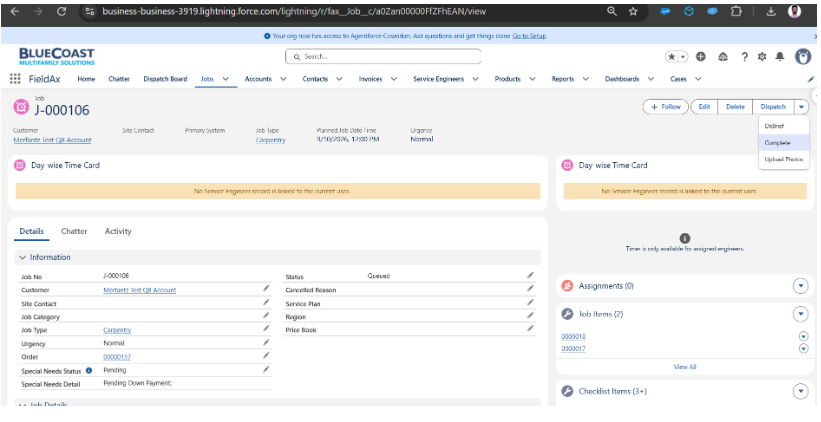
Figure 1 – Job record with the Complete action.

2. Invoice Creation from Job Items

When the Job is completed, an Invoice is created for the Job. The Invoice Line Items are created from the Job Items associated with that Job.

  • Each applicable Job Item is used to create an Invoice Line Item.
  • The Invoice Line Item carries the relevant item/part information, quantity, and unit price from the Job Item.
  • The resulting Invoice contains the line items generated from the Job Items.
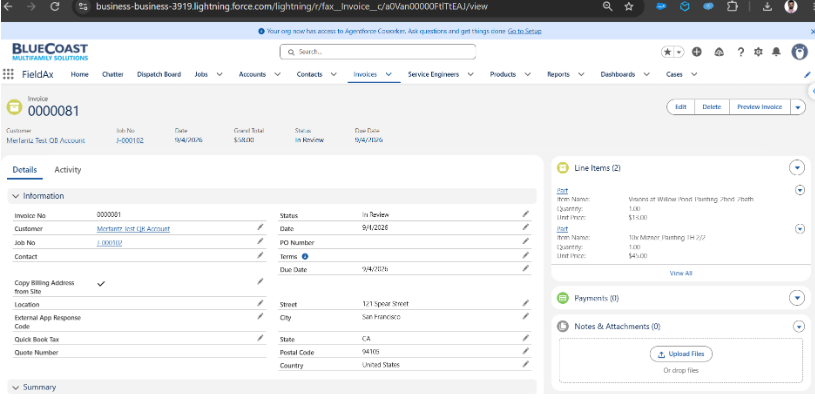
Figure 2 – Job Items displayed on the Job record.
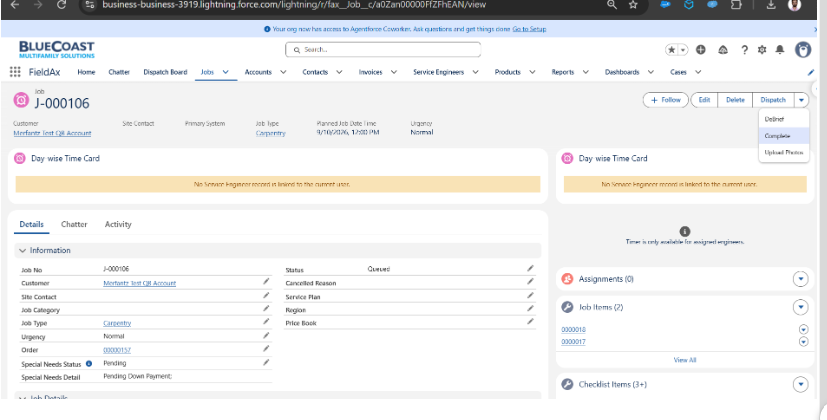
Figure 3 – Invoice record with Invoice Line Items.

3. Invoice Record

The generated Invoice contains the invoice header information and related Invoice Line Items. The Invoice record provides details such as the Invoice Number, Customer, Job Number, Invoice Date, Status, Due Date, billing information, and the associated line items.

  • The Invoice is related back to the originating Job.
  • The Line Items section displays the items created from the Job Items.
  • The Invoice can be previewed using the Preview Invoice action.

4. Invoice Preview

Clicking the Preview Invoice button opens the Invoice PDF Preview. The preview presents the invoice details first and then includes photographs associated with the completed Job.

  • The invoice overview displays the Invoice Number, Job Number, Invoice Date, Due Date, Status, PO Number, Customer/Property, Terms, and contact/billing information as applicable.
  • Invoice Line Items and invoice totals are included in the invoice document.
  • The preview also includes Job photographs in the sections described below.
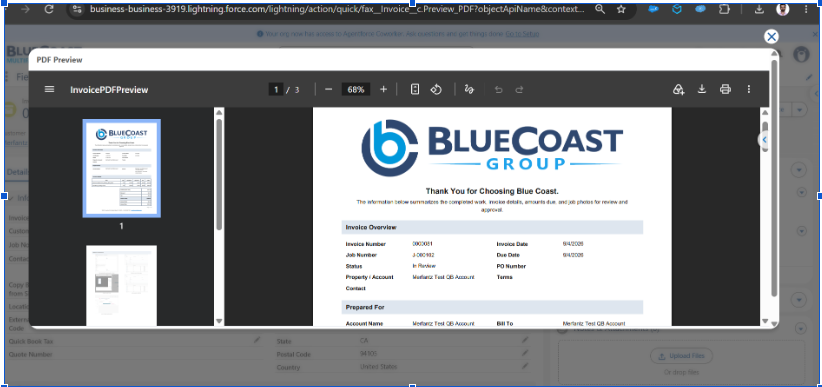
Figure 4 – Invoice PDF Preview showing invoice details.

5. Before Photos and After Photos

The Invoice Preview includes Before Photos and After Photos captured through the Checklist on the Job. These photographs provide visual evidence of the Job condition before the work and the result after the work.

  • Before Photos are sourced from the Checklist photos captured for the Job.
  • After Photos are sourced from the Checklist photos captured for the Job.
  • The photographs are included below the invoice details in the Invoice Preview.
  • This allows the customer or reviewer to see the work documentation together with the invoice.
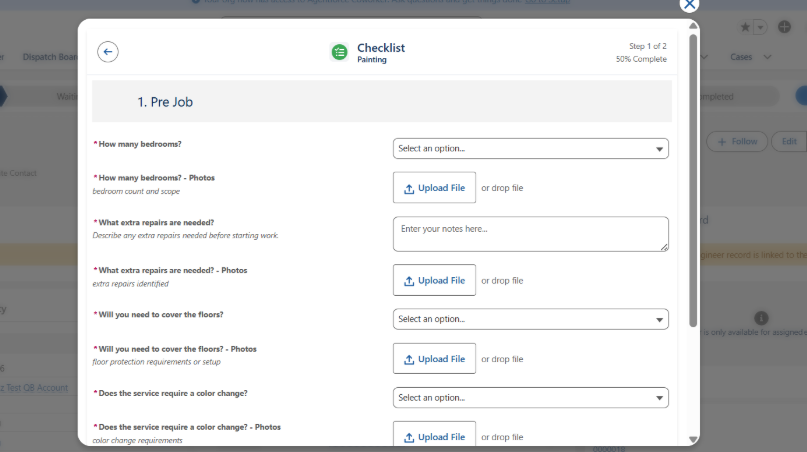
Figure 5 – Job Checklist containing photo upload fields.

6. Job Photos Uploaded Using Upload Photos

In addition to Checklist photos, users can upload photos directly from the Job using the Upload Photos action. These photos are included in the Photos section of the Invoice Preview.

  • Open the Job record.
  • Select the Upload Photos action.
  • Upload the required Job photographs.
  • The uploaded photographs are associated with the Job.
  • When the Invoice Preview is generated, these photos are displayed in the Photos section.

Figure 6 – Job actions including Upload Photos.

7. End-to-End Process Summary

Step Process Description
1 Complete the Job Click Complete on the Job record.
2 Create Invoice The system creates the Invoice for the completed Job.
3 Create Invoice Line Items Invoice Line Items are created from the Job Items.
4 Capture Checklist Photos Before and After photos are captured through the Job Checklist.
5 Upload Job Photos Additional photos can be uploaded using Upload Photos on the Job.
6 Preview Invoice Click Preview Invoice to generate the Invoice PDF Preview.
7 Display Documentation The preview shows invoice details followed by Before Photos, After Photos, and the additional Photos section.

8. Process Flow

Job
↓
Click Complete
↓
Invoice Created
↓
Invoice Line Items Created from Job Items
↓
Checklist Before / After Photos + Job Uploaded Photos
↓
Click Preview Invoice
↓
Invoice Details + Before Photos + After Photos + Photos Section

9. Important Notes

  • The Invoice is created as part of the Job completion process described above.
  • Invoice Line Items are based on the Job Items associated with the Job.
  • Checklist photos are used for the Before Photos and After Photos sections.
  • Photos uploaded directly from the Job using Upload Photos are shown in the Photos section.
  • The Invoice Preview combines billing information and Job documentation into a single preview.

What are your Feelings

  • Happy
  • Normal
  • Sad
Merfantz Technologies is a leading Salesforce consulting firm dedicated to helping small and medium enterprises transform their operations and achieve their goals through the use of the Salesforce platform. Contact us today to learn more about our services and how we can help your business thrive.

Discover More

Terms and Conditions
Privacy Policy
Cancellation & Refund Policy
Information Security Policy

Contact Info

  • No 96, 2nd Floor, Greeta Tech Park, VSI Industrial Estate, Perungudi, Chennai 600 096, Tamil Nadu, INDIA
  • (+91) 44-49521562
  • [email protected]
  • 9:30 IST - 18:30 IST

Latest Posts

Salesforce Passwordless Login: How to Set Up Passkeys
Salesforce: Setup Passkey For Users September 10, 2026
How a Manufacturing Company Improved Sales with Salesforce
Case Study: How a Manufacturing Company Improved Sales with Salesforce September 1, 2026
How to Integrate Salesforce with Your Website or App August 25, 2026

Copyright @2023 Merfantz Technologies, All rights reserved