
2 min read
Overview
Setting up an Account.
Before you can create a quote, job, or invoice for a customer, FieldAx requires an Account record. The Account represents the customer or company you work with.
This article walks you through the steps to create an Account.
Steps to Create an Account
- Go to the Accounts tab.
- Click New.
- Complete the Account Overview section:
- Account Name: Enter the company name. Required
- Type: Select Customer or Vendor. Required
- Tax Group Code: Search for and select the appropriate tax group. Required
- Status, Industry, Terms: Enter these details if known. These fields are optional.
- Scroll down and complete the Billing Address and Shipping Address.
- Click Save.
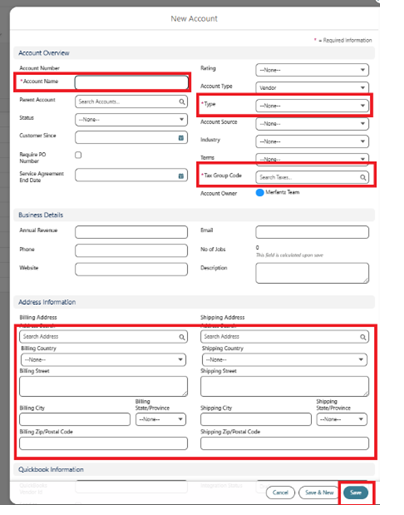
The New Account form. Fields marked with a red asterisk () are required.*
Note: Fields marked with a red asterisk (*) must be completed before FieldAx allows you to save the record.
Once the Account is saved, you will be taken to the Account page. On the right side, the Related List Quick Links panel provides one-click access to related records such as Contacts, Orders, Jobs, Cases, Opportunities, and Quotes.
The Account page, with Related List Quick Links highlighted on the right.
What’s Next
Once the Account is created, you can add a Contact to the Account using the Create Contact article, or start creating a Quote directly from the Account using the Quote to Job article.