
3 min read
Overview
When a customer raises a service case, it needs to be handled within the agreed Service Level Agreement (SLA). FieldAx automatically monitors the case and escalates it when the resolution deadline is missed.
This process is designed for Emergency – Service Repair cases. It automatically tracks the SLA, identifies approaching or missed deadlines, sends notifications, and moves breached cases to the Escalation Queue.
Step 1: Create a Case
A Case can be created in either of the following ways:
- Go to the Cases tab and click New to create a Case manually.
- A customer can send a service request to [email protected], which automatically creates a Case in Salesforce.
For the escalation process, the Case Type is Service Repair and the Priority is Emergency.
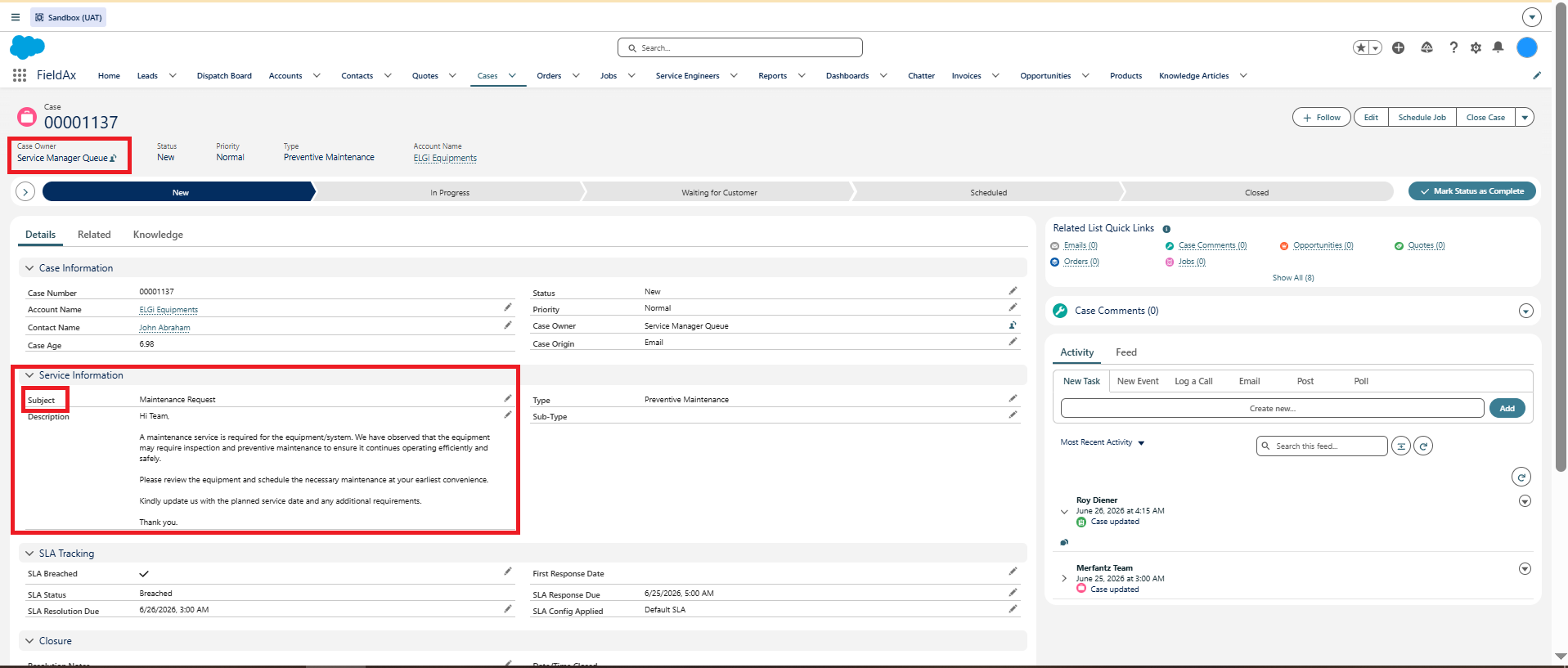
Case creation and Service Repair / Emergency details.
Once the Case is created:
- The Case is automatically assigned to the Service Queue.
- SLA Status is set to Within SLA.
- SLA Response Due and SLA Resolution Due are automatically populated.
- The Case Owner receives an email notification.
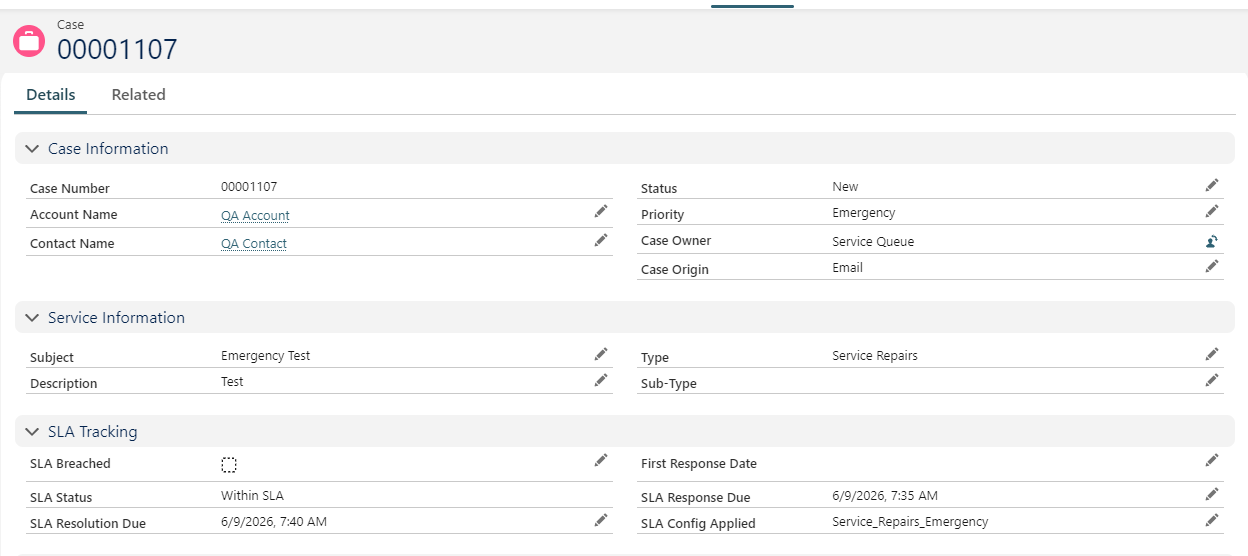
Case detail view — SLA Status set to Within SLA, Response Due and SLA Resolution Due fields populated automatically
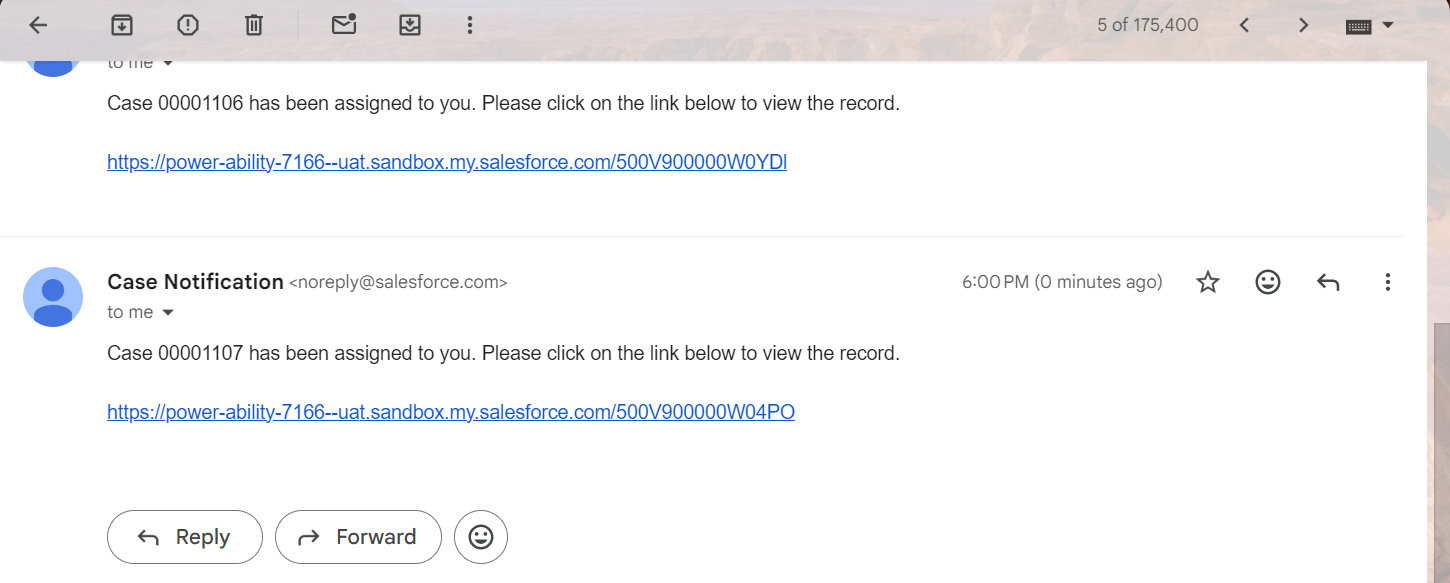
Case creation email notification
Step 2: Monitor SLA – Approaching Breach
FieldAx automatically monitors the Case against its SLA Resolution Due date.
As the resolution deadline gets closer, the SLA Status automatically changes to Approaching Breach.
This allows the team to identify Cases that require attention before the SLA is missed.
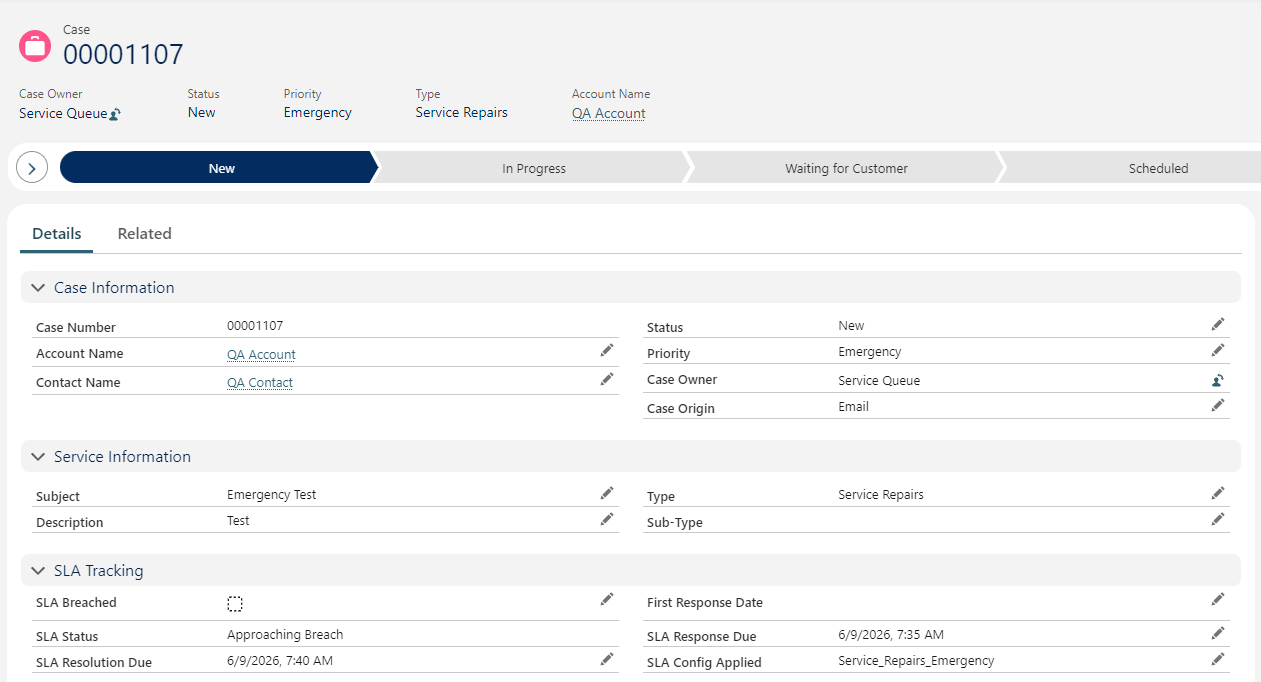
SLA Status showing Approaching Breach.
Step 3: SLA Breach
If the Case is not resolved before the SLA Resolution Due date:
- The SLA Status automatically changes to Breached.
- An hourly background process checks open Cases.
- The SLA Breached checkbox is automatically set to True after the resolution deadline has passed.
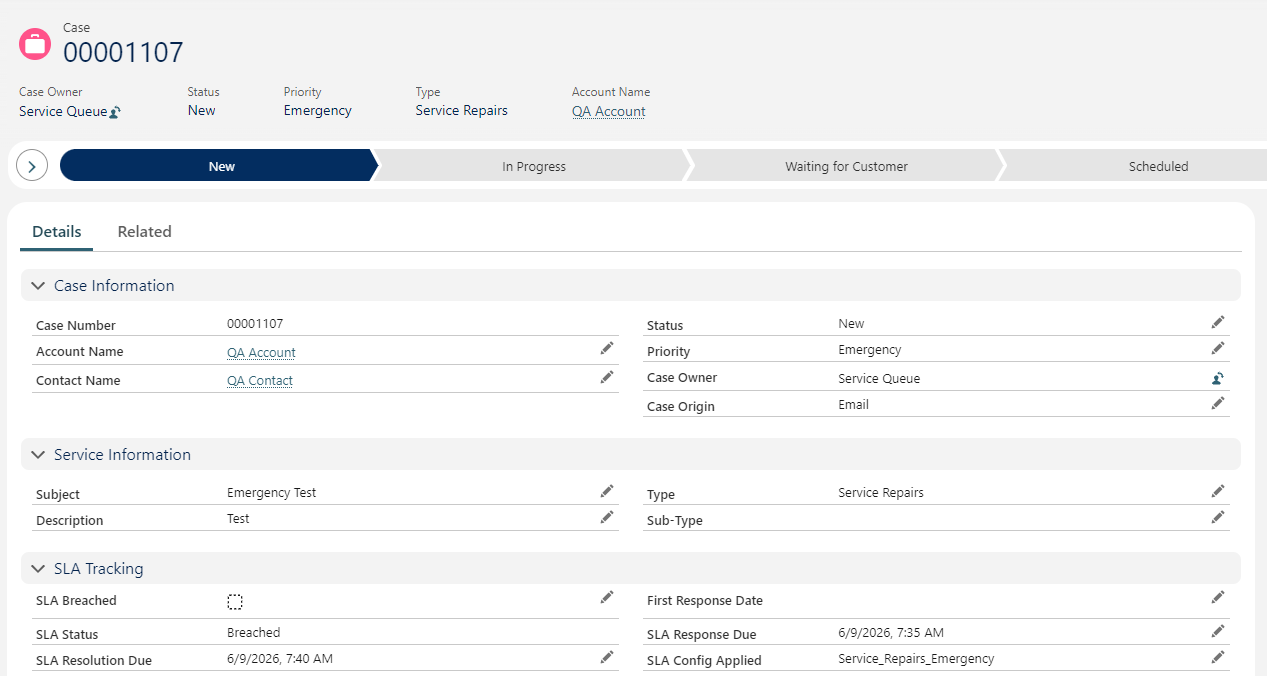
Case showing Breached status and SLA Breached checkbox.
Step 4: Automatic Escalation
Once the SLA Breached checkbox is set to True, the escalation process continues automatically.
30 minutes after the SLA Breached checkbox is set to True:
- An escalation email notification is sent.
- The Case Owner is automatically reassigned to the Escalation Queue.
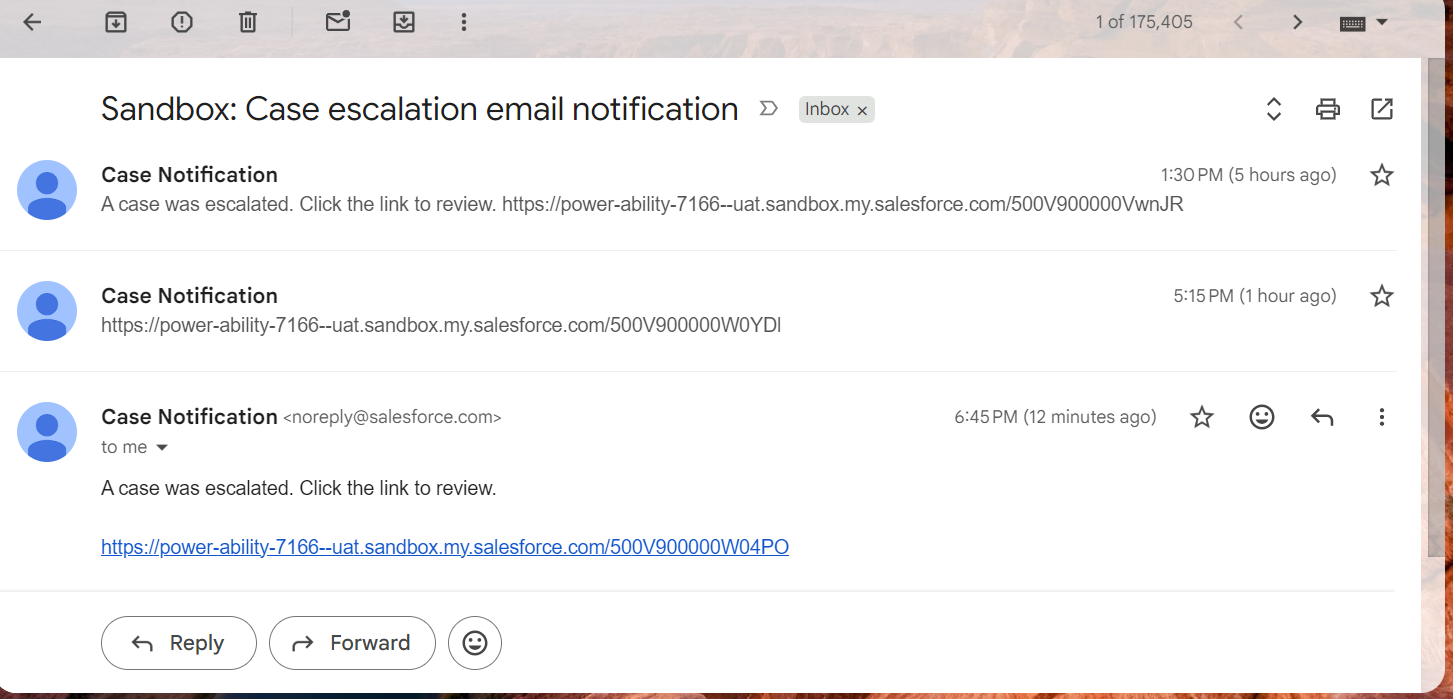
Escalation email notification
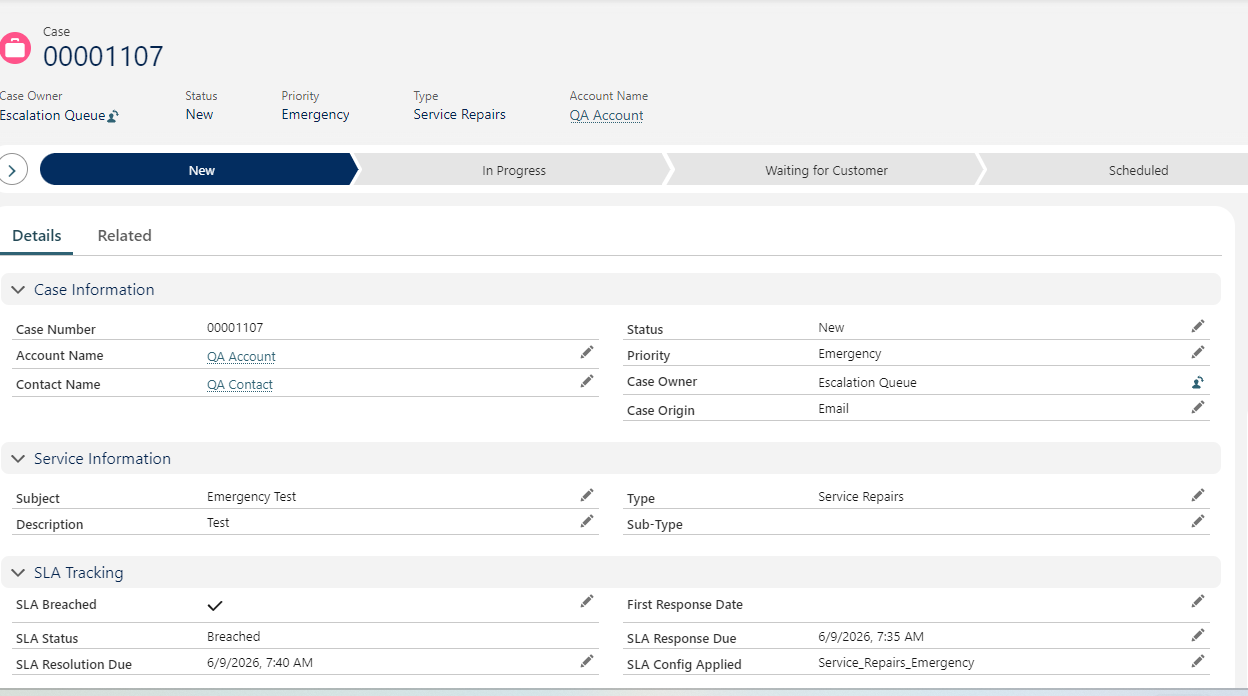
Case Owner reassigned to the Escalation Queue.
Escalation Flow at a Glance
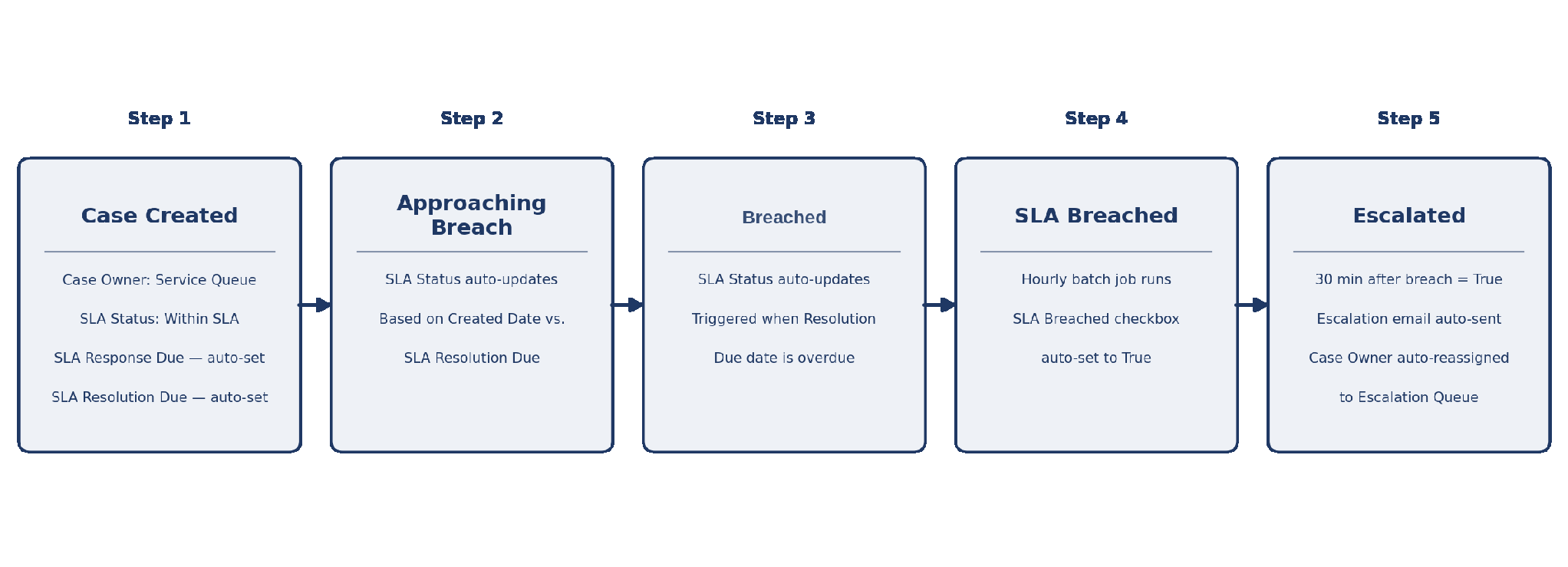
End-to-end case escalation workflow
Important
- The process automatically monitors open Cases, so users do not need to manually track SLA deadlines.
- Approaching Breach indicates that the Case requires attention before the resolution deadline.
- Breached indicates that the SLA Resolution Due date has passed without resolution.
- The hourly batch process updates the SLA Breached checkbox.
- 30 minutes after the breach is identified, an escalation email is sent and the Case is moved to the Escalation Queue.
- The Case remains in the Escalation Queue until the appropriate team addresses and resolves it.