
5 min read
Overview
Salesforce FieldAx is integrated with QuickBooks to synchronize Customer, Vendor, Product, Purchase Order, Invoice, and Payment information between the two systems.
The integration allows records created or updated in one system to be transferred to the other system based on the configured synchronization process.
The integration supports the following data flows:
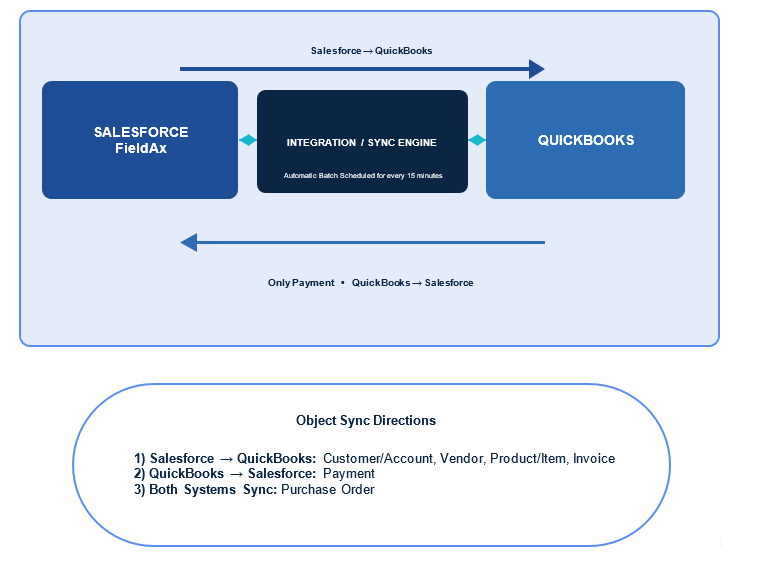
Quick Summary
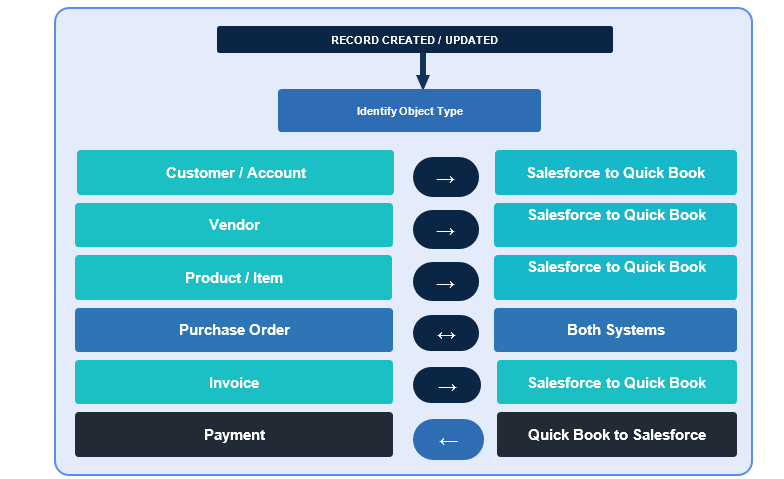
Note: Purchase Orders coming from QuickBooks are posted to Salesforce every 1 hour. If a Purchase Order created in Salesforce needs to be sent to QuickBooks immediately, the user can use Send to QuickBooks.
Step 1: Customer / Account Synchronization
Customer information is maintained in Salesforce FieldAx as an Account and is synchronized to QuickBooks as a Customer.
Sync Direction
Salesforce Account → QuickBooks Customer
Key Information Synchronized
- Account / Customer Name
- Phone
- Description
- Billing Address
- Shipping Address
- Terms
- Website
- Tax Code
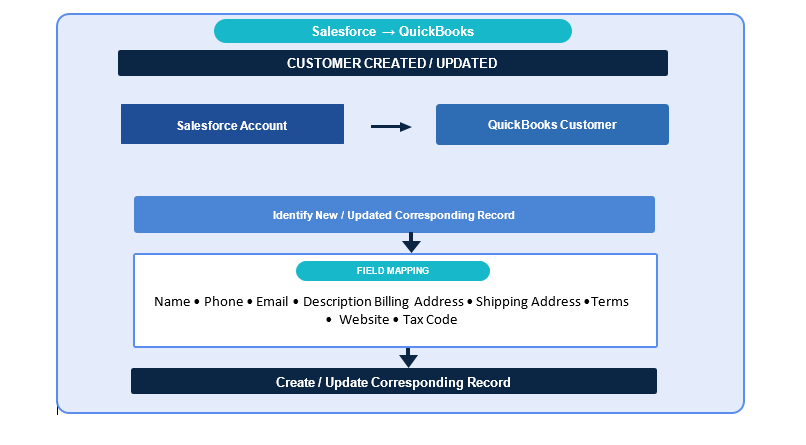
Salesforce Account information mapped to a QuickBooks Customer.
How It Works
- An Account is created or updated in Salesforce.
- The integration identifies the Account record.
- The mapped customer information is prepared for synchronization.
- The information is sent to QuickBooks.
- QuickBooks creates or updates the corresponding Customer record.
Note: New records and updates are processed during the scheduled synchronization batch.
Step 2: Vendor Synchronization
Vendor information is synchronized from Salesforce FieldAx to QuickBooks.
Sync Direction
Salesforce Vendor / Account → QuickBooks Vendor
Before the Vendor is created or updated in QuickBooks, the integration checks whether the record meets the configured Vendor Eligibility criteria.
How It Works
- A Vendor or applicable Account is created or updated in Salesforce.
- The integration checks the Vendor Eligibility criteria.
- If the record is eligible, the Vendor is sent to QuickBooks.
- QuickBooks creates or updates the corresponding Vendor record.
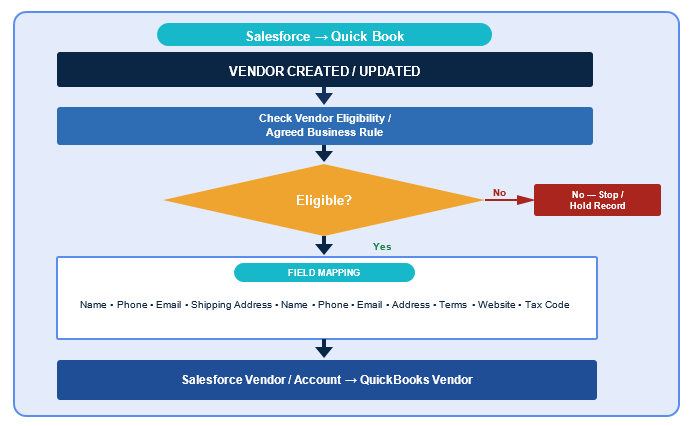
Vendor eligibility and Salesforce-to-QuickBooks Vendor synchronization.
Key Information Synchronized
- Name
- Phone
- Address
- Terms
- Website
- Tax Code
Note: Vendor synchronization is controlled by the configured Vendor Eligibility rules.
Step 3: Product / Item Synchronization
Products created or updated in Salesforce FieldAx are synchronized to QuickBooks as Items.
Sync Direction
Salesforce Product → QuickBooks Item
Key Information Synchronized
- Name
- Active Status
- Sales Price
- Description
- Income Account
- Expense Account
- Asset Account
- COGS
- Quantity on Hand
- Inventory Tracking
- Taxable
- Purchase Cost
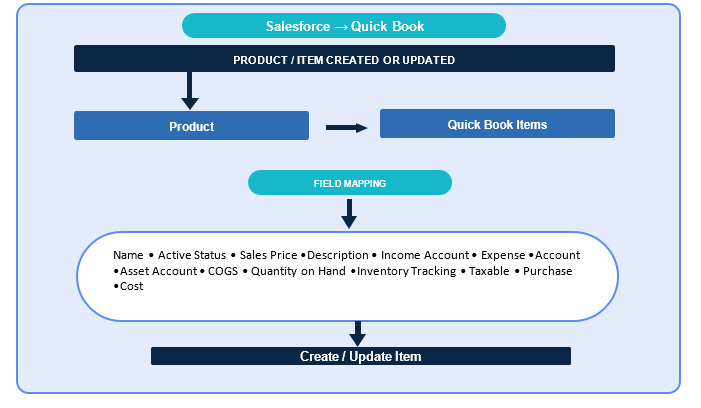
Salesforce Product mapped to a QuickBooks Item.
How It Works
- A Product is created or updated in Salesforce.
- The integration identifies the Product.
- The required Product information is prepared for synchronization.
- QuickBooks creates or updates the corresponding Item.
Step 4: Purchase Order Synchronization
Purchase Orders have a specific synchronization process between QuickBooks and Salesforce.
QuickBooks → Salesforce
Purchase Orders created or updated in QuickBooks are posted to Salesforce through the scheduled integration process.
The Purchase Order is synchronized from QuickBooks to Salesforce every 1 hour.
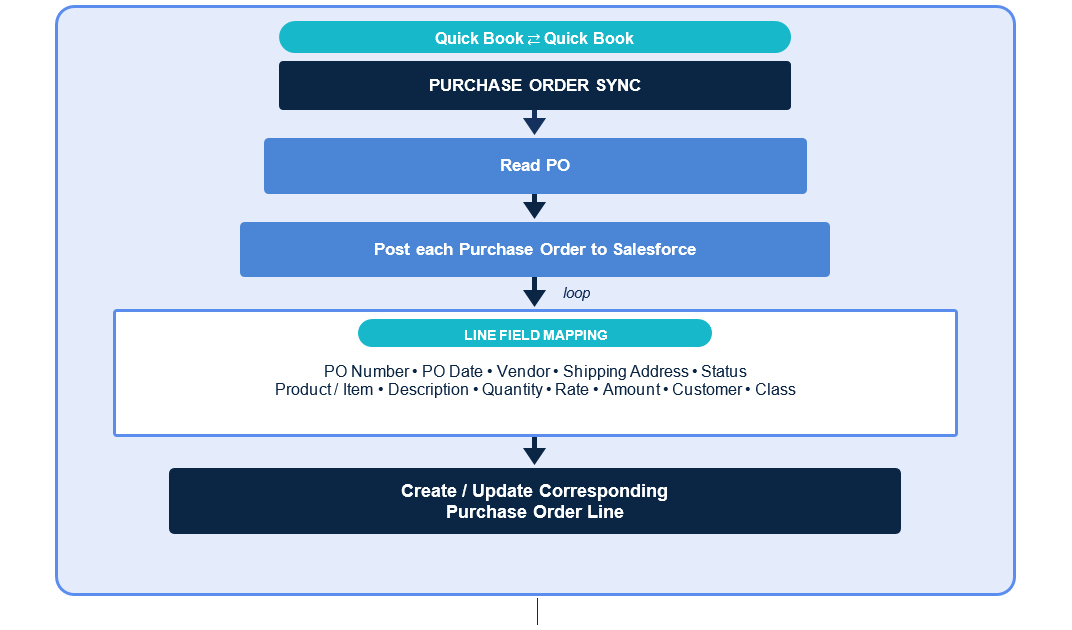
How It Works
- A Purchase Order is created or updated in QuickBooks.
- The integration identifies the Purchase Order.
- During the next scheduled 1-hour synchronization, the Purchase Order is posted to Salesforce.
- The corresponding Purchase Order record is created or updated in Salesforce.
Manual: Salesforce → QuickBooks
If a Purchase Order is created or updated in Salesforce and needs to be posted to QuickBooks immediately, the user can manually use the Send to QuickBooks button.
Steps
- Open the Purchase Order in Salesforce.
- Review the Purchase Order details.
- Click Send to QuickBooks.
- The Purchase Order is manually posted to QuickBooks without waiting for the scheduled synchronization.
Note: The 1-hour schedule applies to Purchase Orders coming from QuickBooks to Salesforce. For a Salesforce Purchase Order that needs to be sent to QuickBooks immediately, use Send to QuickBooks.
Step 5: Purchase Order Line Item Synchronization
Purchase Order Line Items are synchronized along with the Purchase Order.
Key Information
- Product / Item
- Description
- Quantity
- Rate
- Amount
- Customer
- Class
Purchase Order Line Item mapping.
When a Purchase Order is posted to Salesforce from QuickBooks, the related Line Items are also brought into Salesforce as part of the Purchase Order synchronization.
When a Purchase Order is manually sent from Salesforce to QuickBooks using Send to QuickBooks, the applicable Purchase Order Line Items are also posted.
Step 6: Invoice Synchronization
Invoices created or updated in Salesforce FieldAx are synchronized to QuickBooks.
Sync Direction
Salesforce Invoice → QuickBooks Invoice
Key Information Synchronized
- Invoice Date
- Customer
- Grand Total
- Due Date
- Invoice Number
- Tax Code
- PO Number
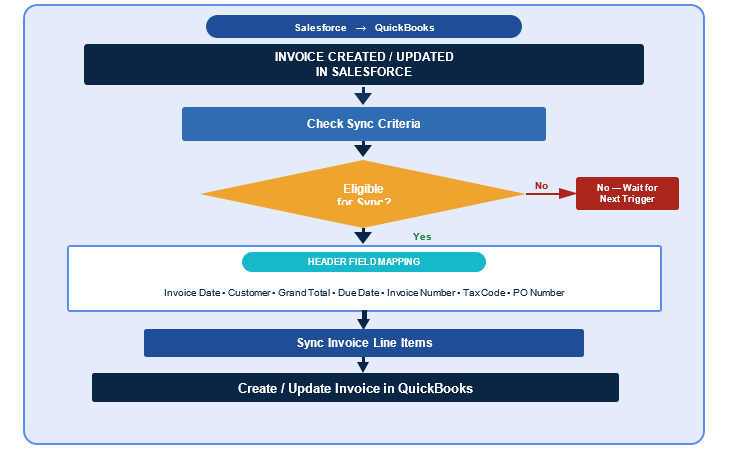
Salesforce Invoice mapped to a QuickBooks Invoice.
How It Works
- An Invoice is created or updated in Salesforce.
- The integration checks whether the Invoice meets the required synchronization criteria.
- The Invoice is sent to QuickBooks.
- QuickBooks creates or updates the corresponding Invoice.
Step 7: Invoice Line Item Synchronization
Invoice Line Items are synchronized from Salesforce to QuickBooks along with the Invoice.
Key Information Synchronized
- Product / Item
- Unit Price
- Quantity
- Amount
- Description
- Taxable
- Class
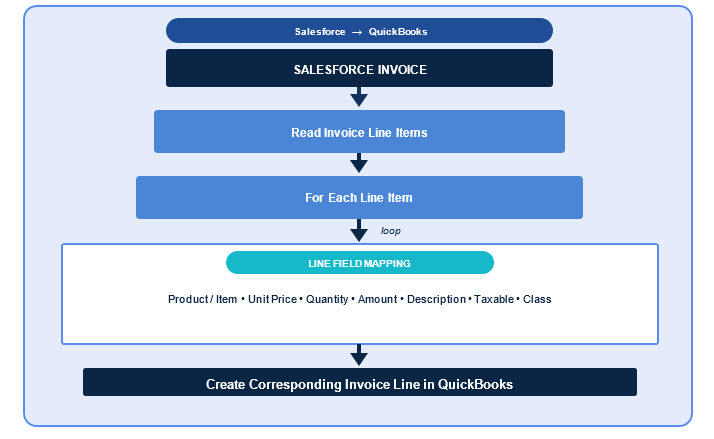
Invoice Line Item mapping from Salesforce to QuickBooks.
The Invoice Line Items are transferred along with the applicable Invoice during synchronization.
Step 8: Payment Synchronization
Payment information flows from QuickBooks back to Salesforce FieldAx.
Sync Direction
QuickBooks Payment → Salesforce Payment
When a Payment is created or updated in QuickBooks, the integration transfers the Payment information to Salesforce.
Key Information
- Amount Paid
- Payment Date
- Invoice Reference
- Status
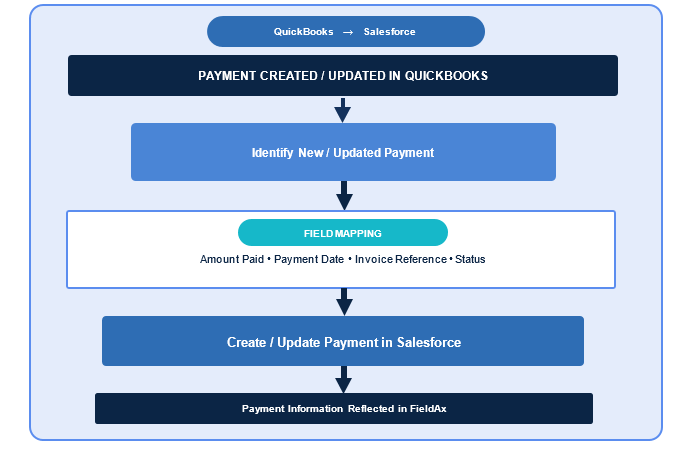
Payment synchronization from QuickBooks to Salesforce.
How It Works
- A Payment is created or updated in QuickBooks.
- The integration identifies the Payment.
- The Payment is transferred to Salesforce.
- The corresponding Payment record is created or updated.
Step 9: Automatic Synchronization Schedule
The integration runs automatically according to the configured schedule.
Salesforce → QuickBooks
The following records are synchronized from Salesforce to QuickBooks:
- Customer / Account
- Vendor
- Product / Item
- Invoice
QuickBooks → Salesforce
The following records are synchronized from QuickBooks to Salesforce:
- Purchase Order — every 1 hour
- Payment — every 15 minutes
Manual Posting
For a Salesforce Purchase Order that needs to be sent to QuickBooks immediately, users can use the Send to QuickBooks button instead of waiting for the scheduled process.
Step 10: Send a Record to QuickBooks Immediately
When a record needs to be posted to QuickBooks immediately, use the Send to QuickBooks button where available.
Steps
- Open the required Salesforce record.
- Review the record details.
- Click Send to QuickBooks.
- The record is manually posted to QuickBooks.
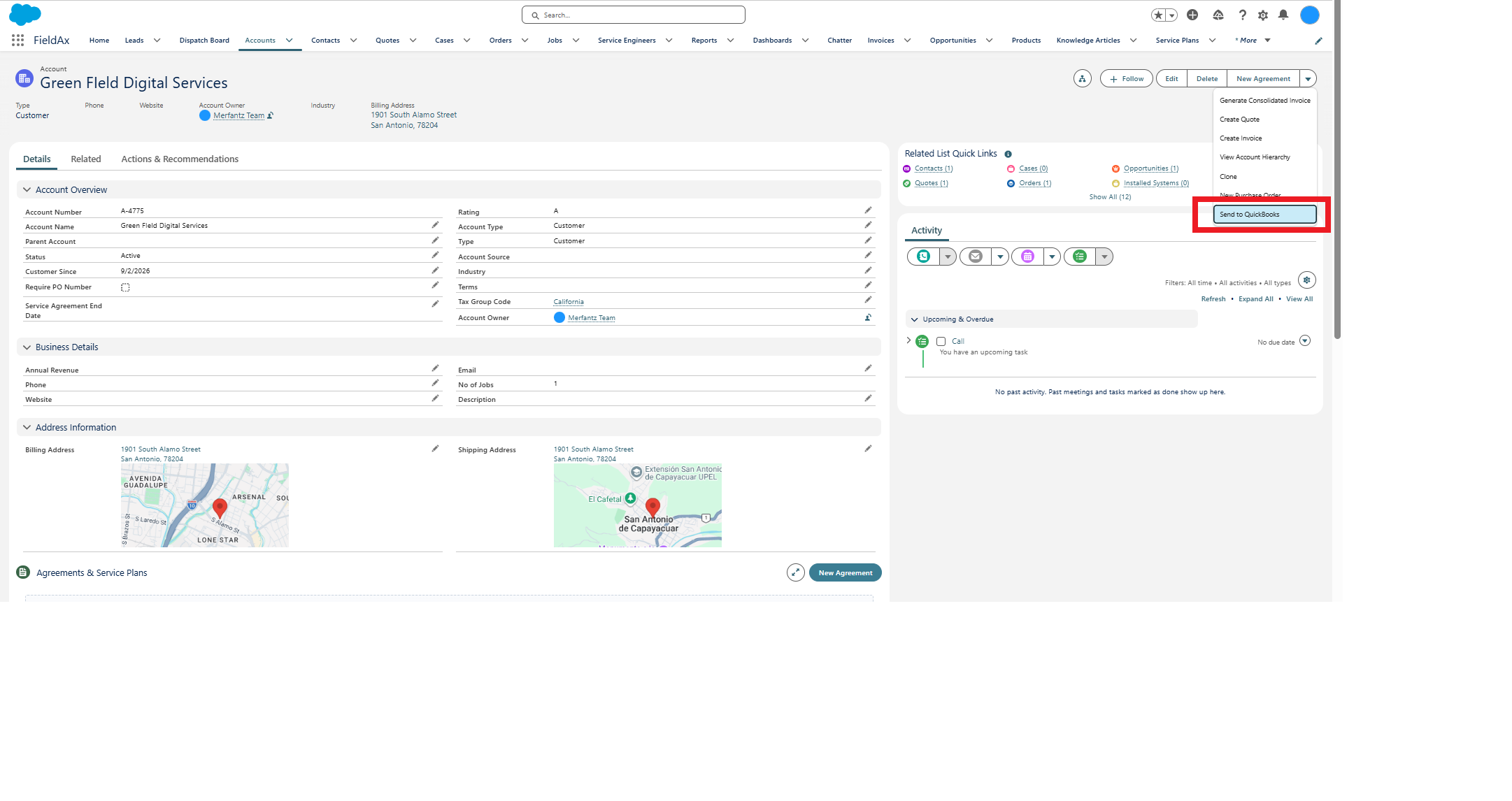
Send to QuickBooks button(visible in all the pages)
Example: If a Purchase Order created in Salesforce needs to be available in QuickBooks immediately, click Send to QuickBooks rather than waiting for the scheduled process.
Important Notes
- Purchase Orders created or updated in QuickBooks are posted to Salesforce every 1 hour.
- If a Purchase Order in Salesforce needs to be posted to QuickBooks immediately, use Send to QuickBooks.
- The Send to QuickBooks option allows the user to manually post the record without waiting for the scheduled synchronization.
- Customer/Account, Vendor, Product/Item, and Invoice are synchronized from Salesforce to QuickBooks.
- Payment is synchronized from QuickBooks to Salesforce.
- Purchase Order synchronization from QuickBooks to Salesforce runs every 1 hour.
- New records and updates are processed according to the applicable synchronization schedule.
- Vendor synchronization is subject to the configured Vendor Eligibility rules.
- Purchase Order Line Items and Invoice Line Items are synchronized along with their respective parent records.
Integration Flow at a Glance
Salesforce → QuickBooks
Account → Customer
Vendor → Vendor
Product → Item
Invoice → Invoice
QuickBooks → Salesforce
Purchase Order → Purchase Order — Every 1 hour
Payment → Payment — Every 15 minutes
Manual Posting
Salesforce Purchase Order → Click “Send to QuickBooks” → QuickBooks
[Insert Screenshot Here]
Overall Salesforce FieldAx and QuickBooks integration workflow.
Related Articles
- Create an Account: Learn how to create a Customer Account in FieldAx.
- Create a Product: Learn how Products are maintained in FieldAx.
- Create a Purchase Order: Learn how to create and manage Purchase Orders.
- Create an Invoice: Learn how to create and manage Invoices.
- Order to Invoice: Learn how an approved Quote progresses through Order, Job, and Invoice.