
2 min read
Overview
A Contact is a person associated with a customer’s company who you may communicate with regarding quotes, invoices, jobs, and other customer-related activities. Every Contact must be linked to an Account.
This article walks you through the steps to add a Contact to an existing Account.
Steps to Add a Contact
- From the Account page, click Contacts in the Quick Links panel, or open the Contacts tab and click New.
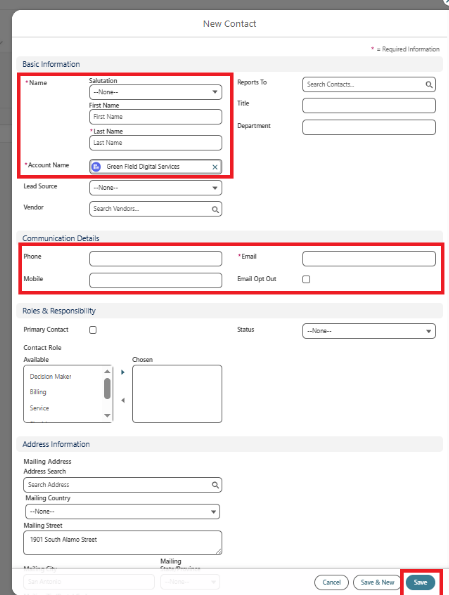
- Enter the Contact’s First Name and Last Name.
- Check that the Account Name is populated. This links the Contact to the Account.
- Complete the Communication Details:
- Phone / Mobile: Enter the Contact’s phone number(s).
- Email: Enter the Contact’s email address. Required — this is used to send quotes and invoices.
- Click Save.
The New Contact form, with the Contact linked to the Account.
Note: You can also create a new Contact directly from the Quote screen without leaving the page. See Step 2 of the Quote to Job article for more information.
What’s Next
Once the Account and Contact are set up, you’re ready to create a Quote. See the Quote to Job article for the complete Quote → Order → Job process.