
A step-by-step reference for reviewing job requests, assigning technicians, and monitoring jobs from start to finish.
1. Overview of the Dispatcher Role
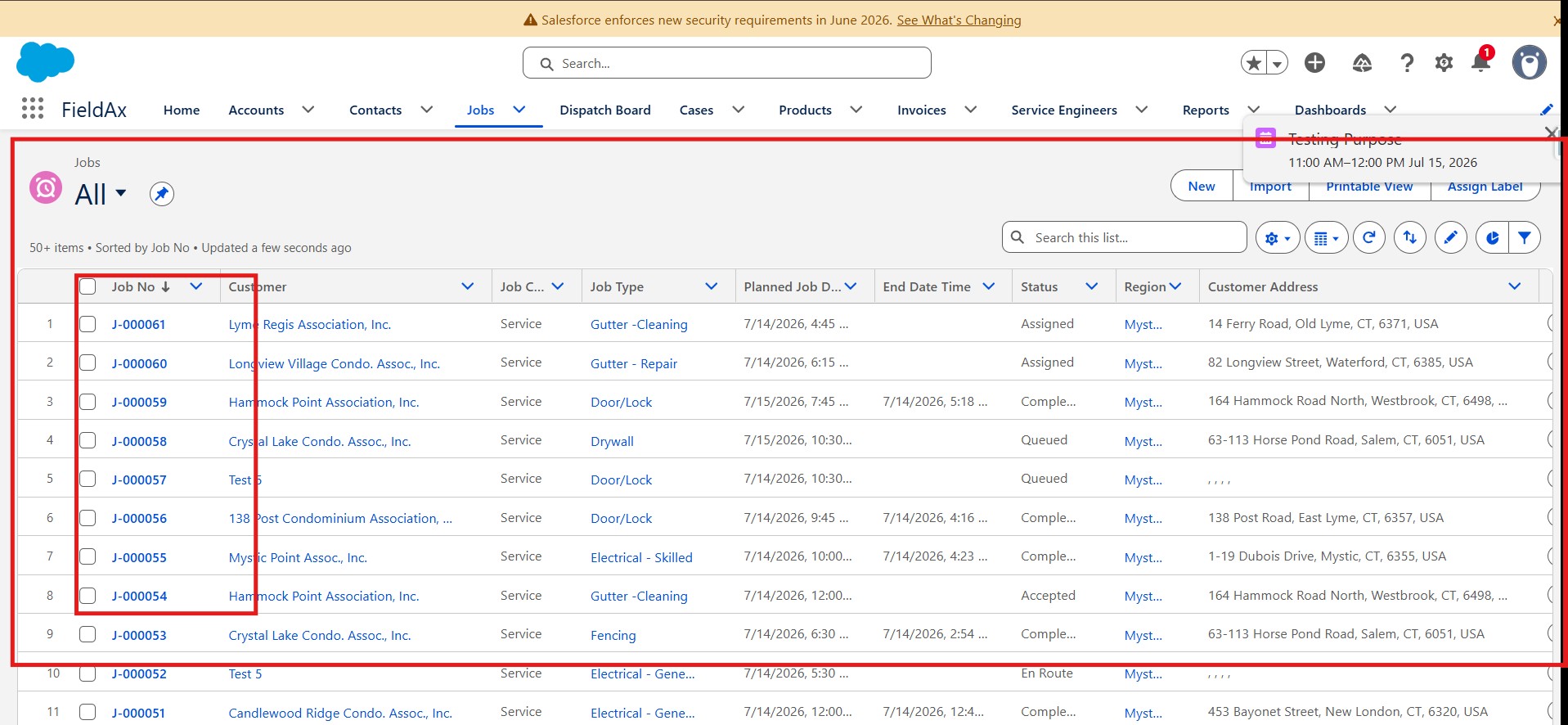
As dispatcher, you are the link between incoming job requests and the technicians in the field. Your main responsibilities are:
- Reviewing new job requests as they come in from the owner/tenant request portal
- Assigning jobs to the right technician(s) using the Dispatch Board
- Managing dual-technician jobs when a job requires two people
- Monitoring job status throughout the day
The Dispatch Board — your main daily working view
2. Reviewing New Job Requests
When an owner or tenant submits a request through the online portal, a job is created automatically in FieldAx — no manual data entry is required on your part.
Each incoming job includes:
- Requester’s name, phone number, and email address
- Property / association, unit number, or common area
- Description of work and work type
- Job category (defaults to Service)
Newly submitted jobs appear in a dedicated section so they’re easy to spot. Open the job to review the details before assigning it.
Note: Three checkboxes may appear on a job — Individual Owner, Need to Schedule with Owner, and Bill to Owner. Check these before dispatch, as technicians rely on this information in the field (for example, to know whether they need to call the owner first).
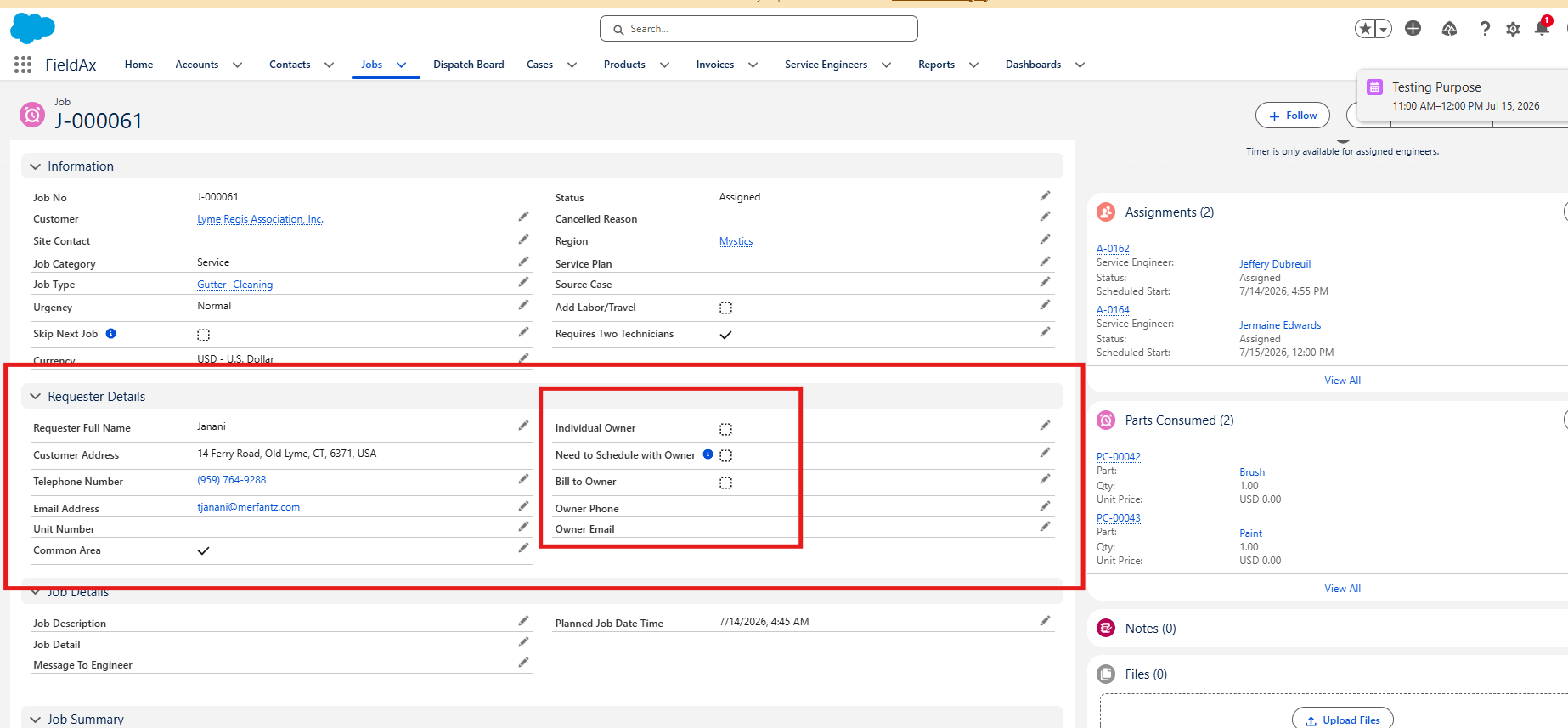
Reviewing a newly submitted job request
3. Assigning Jobs to Technicians
There are two ways to assign a job:
- From the job record — open the job, use the dropdown, and select Dispatch. Choose the technician and time.
Assigning a technician from the job record
- From the Dispatch Board — locate the job and drag it onto the technician’s schedule for the day you want it worked.
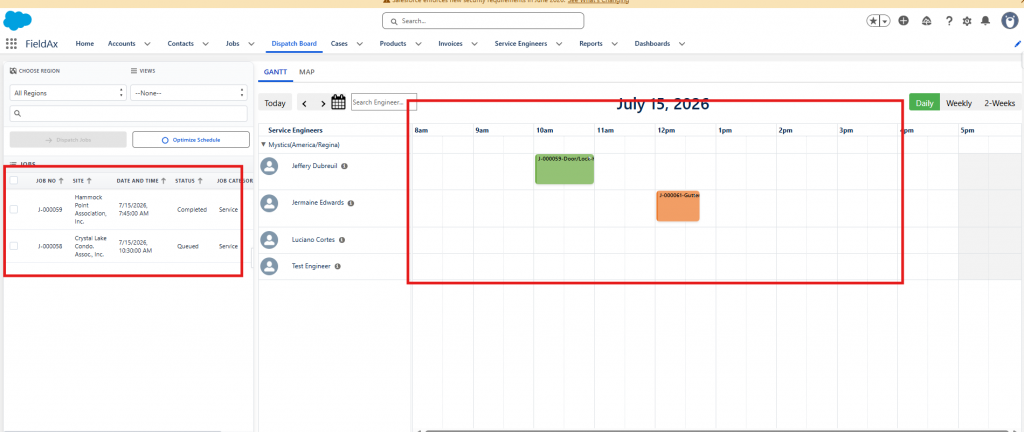
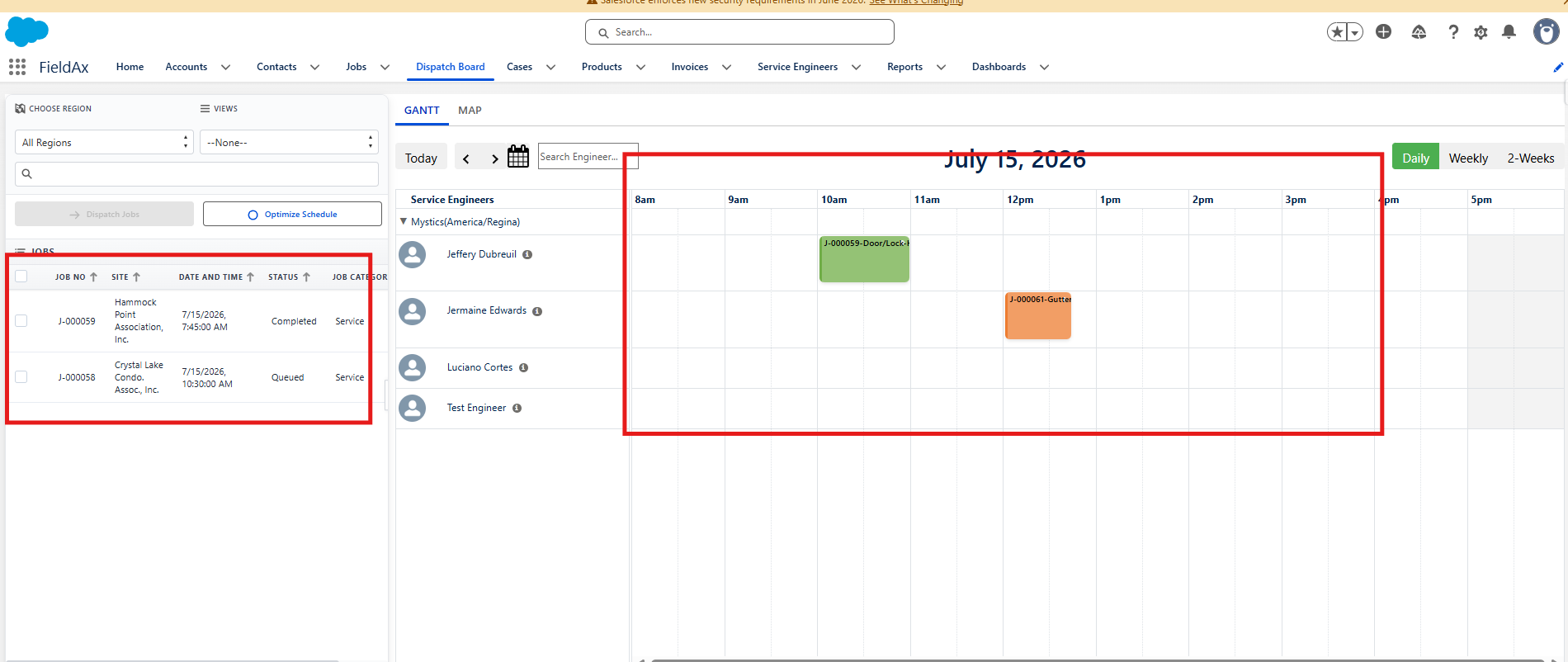
Drag-and-drop assignment on the Dispatch Board
The Dispatch Board is the main daily scheduling view. Use it each morning (and throughout the day, as needed) to plan and adjust technician assignments.
4. Assigning Two Technicians to One Job
Some jobs require two technicians on-site at the same time. To assign a second technician to the same job:
- Confirm the job is flagged as a dual-technician job. This must be set before assignment — single-technician jobs will not allow a second assignment.
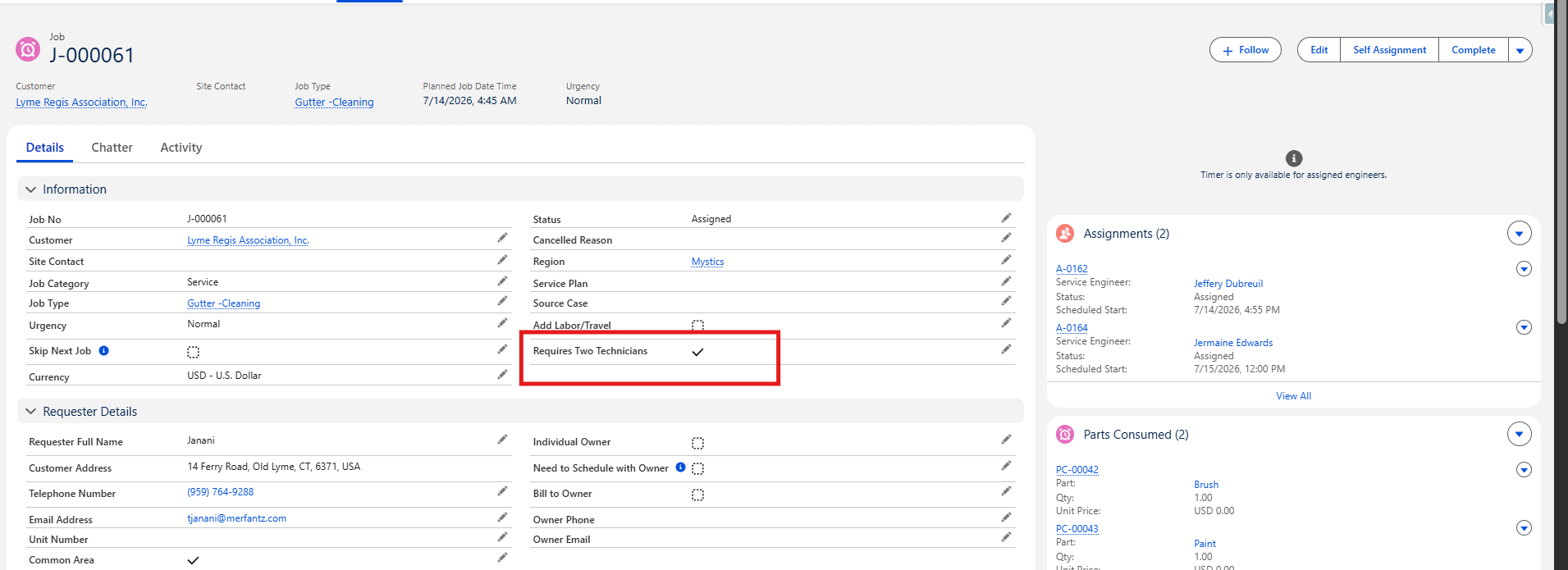
Confirming a job is flagged for dual-technician assignment
- Drag the job onto the first technician’s schedule.
- Drag the same job a second time onto the second technician’s schedule.
Assigning the second technician on the Dispatch Board
Note: Once two technicians are assigned to a dual job, the job will no longer show as available for further self-assignment by other technicians.
5. Avoiding Scheduling Conflicts
Before assigning a technician to a new job, check their existing schedule to avoid double-booking — for example, don’t assign a technician to a job across town while they’re already scheduled at another property at the same time.
Note: The calendar view is being updated to show technician name and job location/type directly on each entry (e.g., “Jeff — Ethan’s Landing — Gutters”), so conflicts are easier to spot at a glance. Until that update is live, cross-check against the Dispatch Board, which shows full assignment detail.
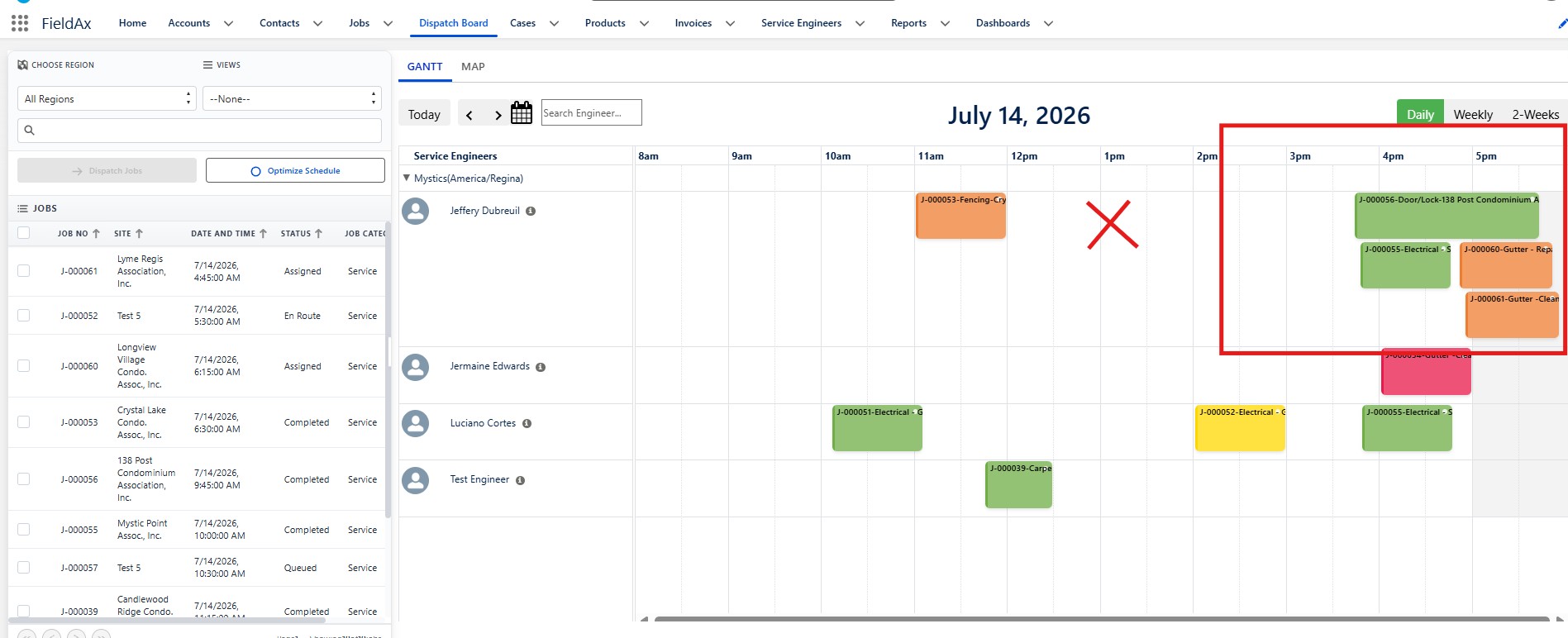
Cross-checking assignments on the Dispatch Board
6. Monitoring Job Progress
As technicians work their jobs, their status updates in real time and can be tracked from the dispatch view. The colors below represent the technician’s current stage on a job:
| ● | Accepted | Technician has accepted the assignment. |
| ● | En Route | Technician is en route to the job site. |
| ● | Onsite | Technician is on-site and working the job. |
| ● | Completed | Job finished; service report generated. |
Once a job is marked Completed, a service report (including any photos and parts/materials used) is automatically attached to the job as a PDF for your records.
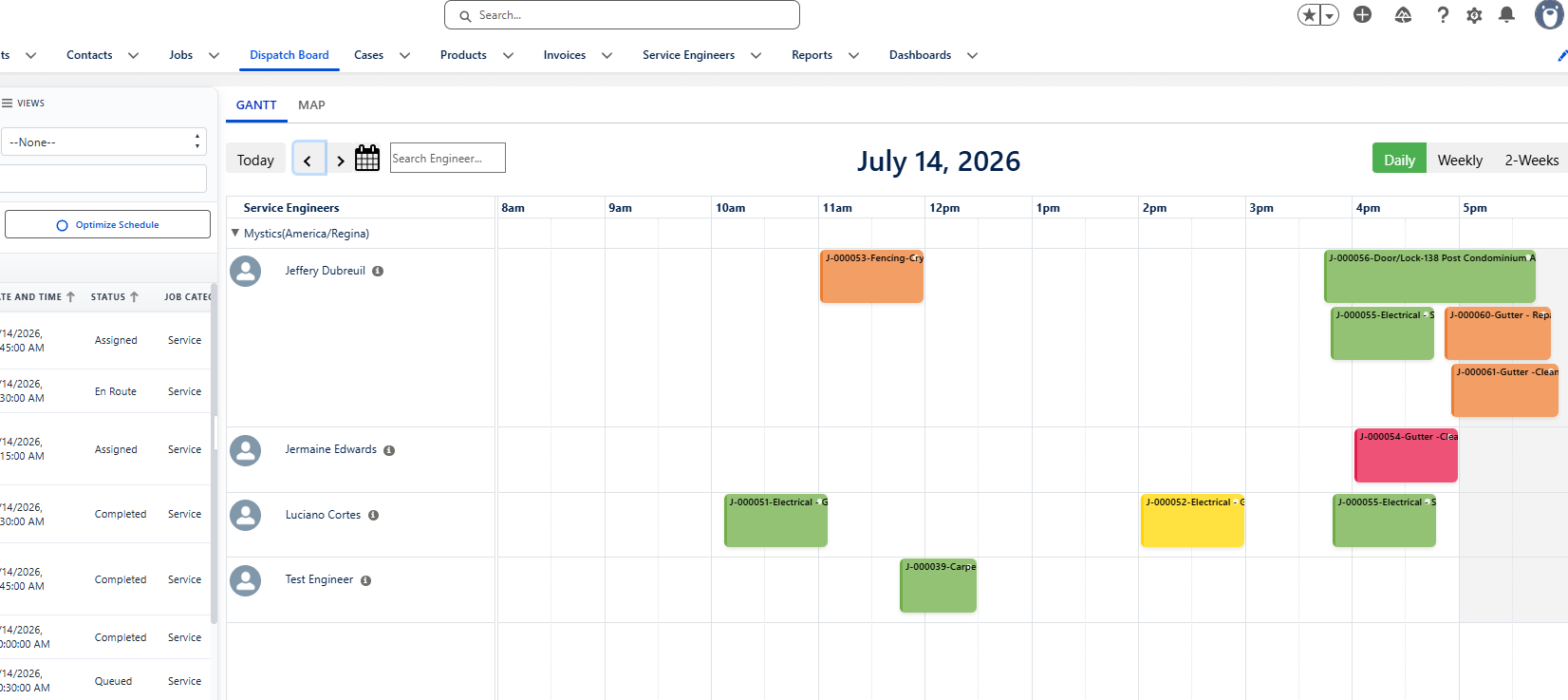
Job status tracking on the dispatch view
7. Parts, Materials & Billing
Parts and materials tracking is being updated based on client feedback. Once live, technicians will log purchases by payment method and amount (e.g., Home Depot, Lowe’s, Visa, American Express, Truck Stock) rather than itemized inventory. A receipt photo will also be attached where applicable.
As dispatcher/admin, this means when reviewing completed jobs for billing, you’ll be able to see which card or vendor was used and the amount spent, making it easier to match receipts to work orders.
8. Quick Reference
| Task | Where to Do It |
| Review new job requests | New Requests section on the job list |
| Assign a job | Job record (Dispatch dropdown) or Dispatch Board (drag-and-drop) |
| Assign 2 technicians | Dispatch Board — drag the same dual-flagged job twice |
| Check for conflicts | Dispatch Board / Calendar view |
| Track job status | Dispatch Board (Accepted / En Route / Onsite / Completed) |
| Review completed job / billing info | Job record — attached service report PDF |