
3 min read
Overview
Purchase Orders are used to record purchases from vendors. In FieldAx, you can create a Purchase Order, add the required products or services, and track its synchronization status with QuickBooks.
Important: Purchase Order synchronization is now one-way: QuickBooks → Salesforce. Purchase Orders created or updated in QuickBooks are automatically posted to Salesforce every 1 hour.
Step 1: Open Purchase Orders
- Click the App Dropdown in the top-right corner.
- Select Purchase Order.
- On the Purchase Order page, click New.
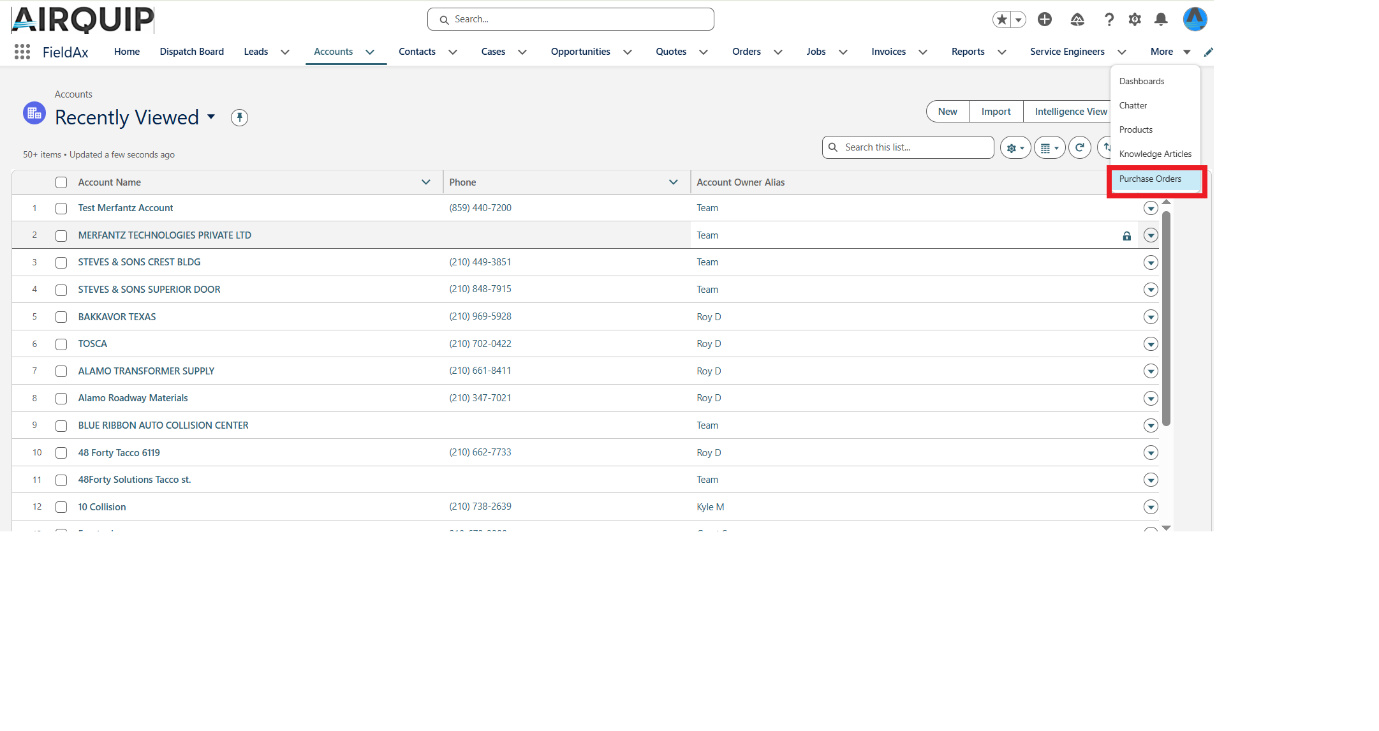
Purchase Order option and New button.
Step 2: Enter Purchase Order Details
Enter the required Purchase Order information:
- Vendor: Select the vendor.
- PO Date: Enter the Purchase Order date.
- Opportunity / Order: Link the related Opportunity or Order, if applicable.
- Address Details: Enter the required address information.
The QuickBooks Information section is also available on the Purchase Order. The QuickBooks PO ID and Integration Status are populated when the Purchase Order is successfully synchronized.
Click Save.
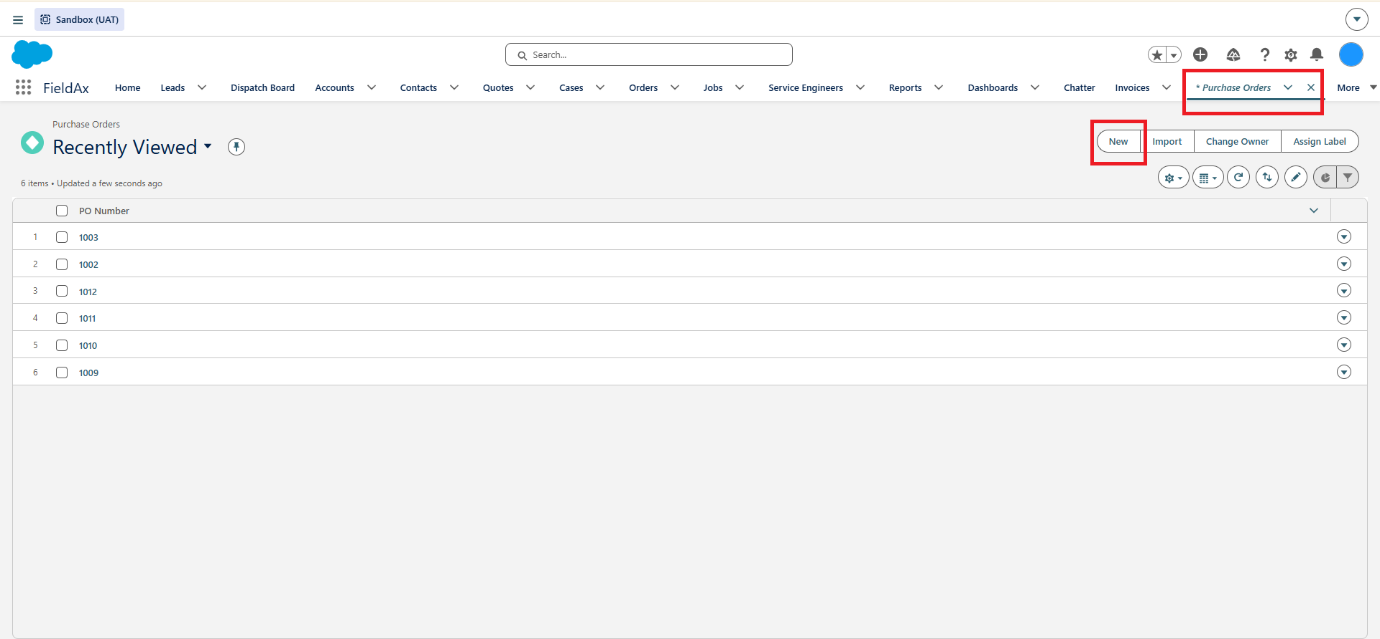
New Purchase Order form.
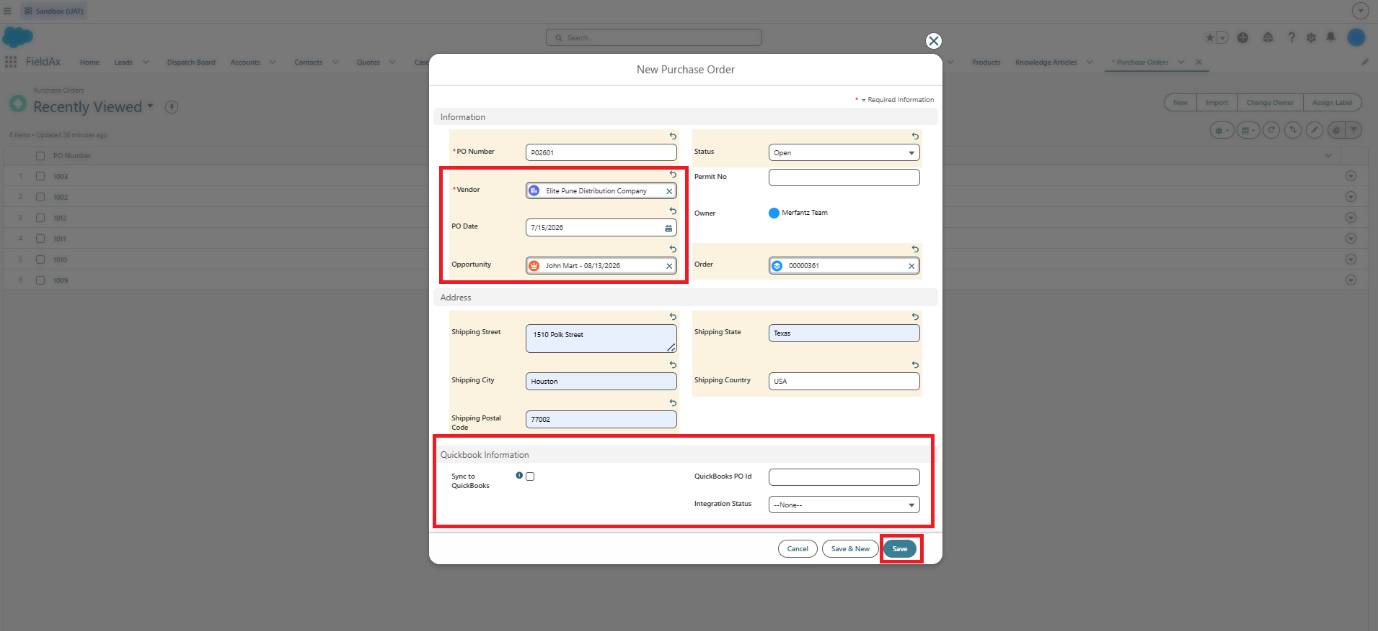
Create and Manage a Purchase Order
Step 3: Add Purchase Order Line Items
After creating the Purchase Order:
- Open the Purchase Order record.
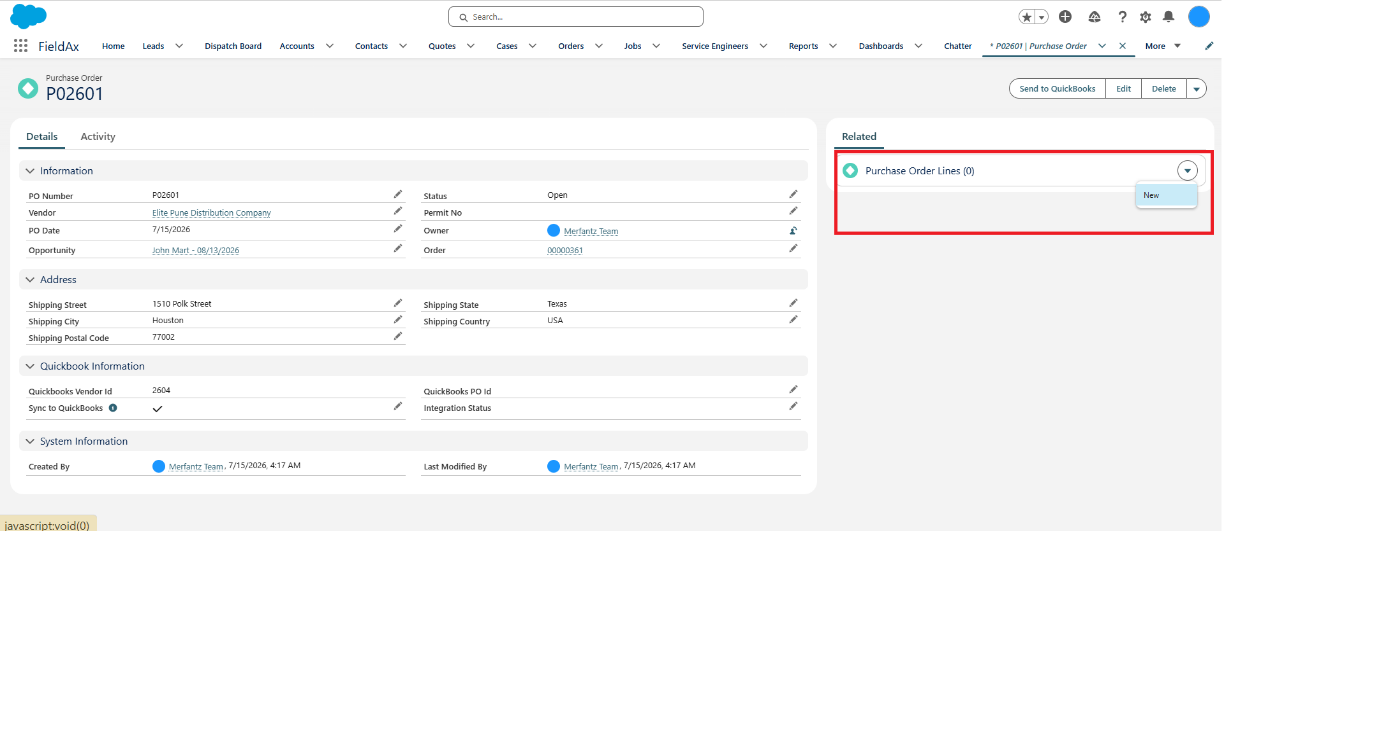
- Go to Purchase Order Line Items.
- Click New.
- Select the required Product or Service.
- Enter the required details:
- Product
- Quantity
- Rate
- QuickBooks Class
- Customer
- Description
- Click Save.
Create and Manage a Purchase Order
New Purchase Order Line Item screen.
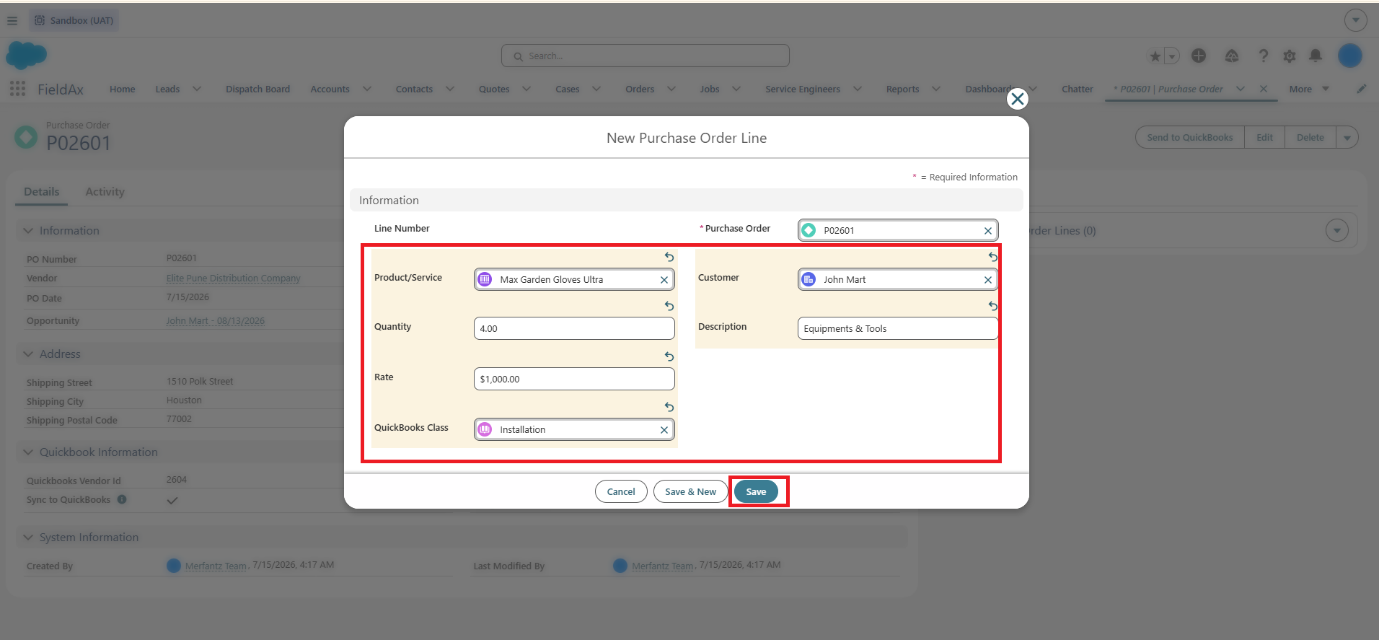
Purchase Order line item details.
Step 4: QuickBooks → Salesforce Synchronization
Purchase Orders created or updated in QuickBooks are automatically synchronized to Salesforce every 1 hour.
The Purchase Order and its relevant Line Items are posted to Salesforce through the scheduled synchronization process.
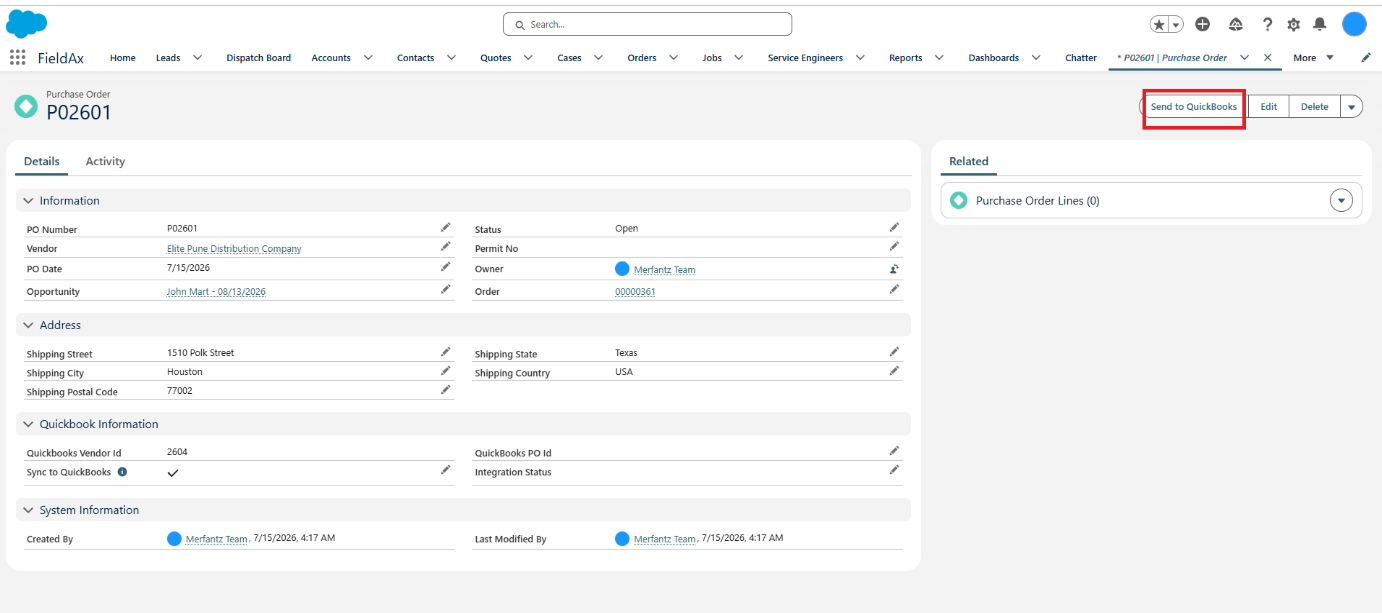
Purchase Order synchronized from QuickBooks to Salesforce.
Note: Purchase Order synchronization is one-way only — QuickBooks → Salesforce. The previous Salesforce → QuickBooks Purchase Order sync process is no longer applicable.
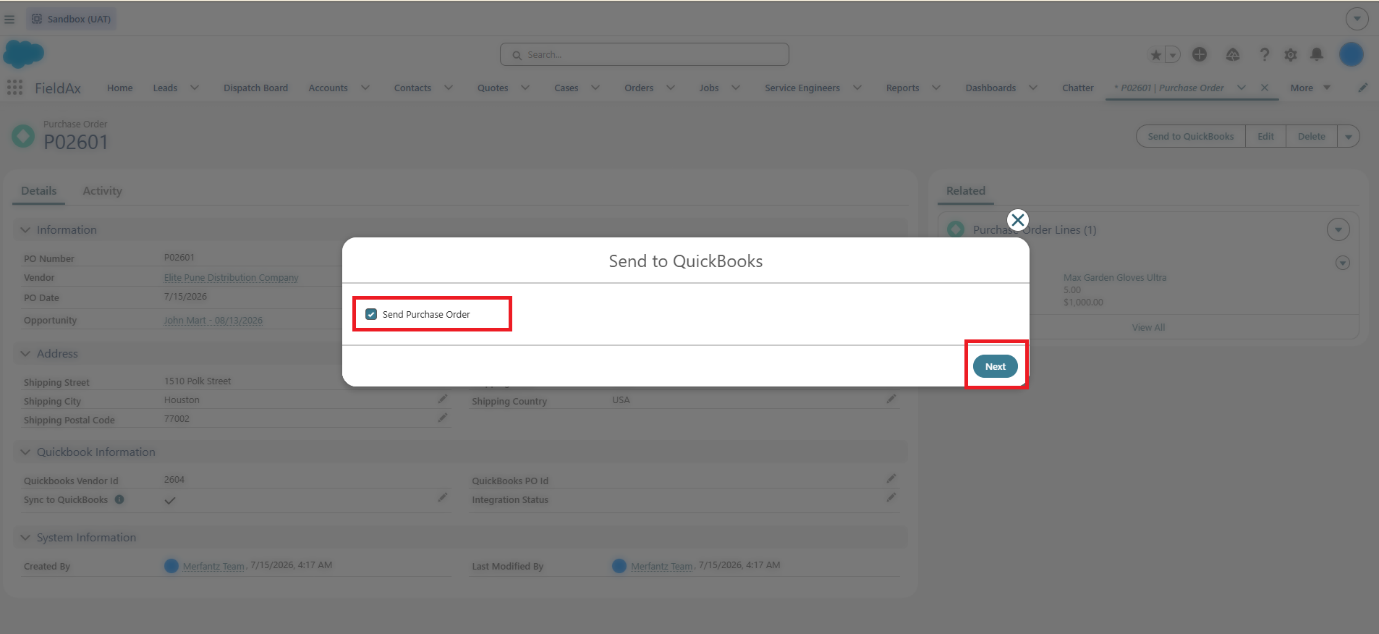
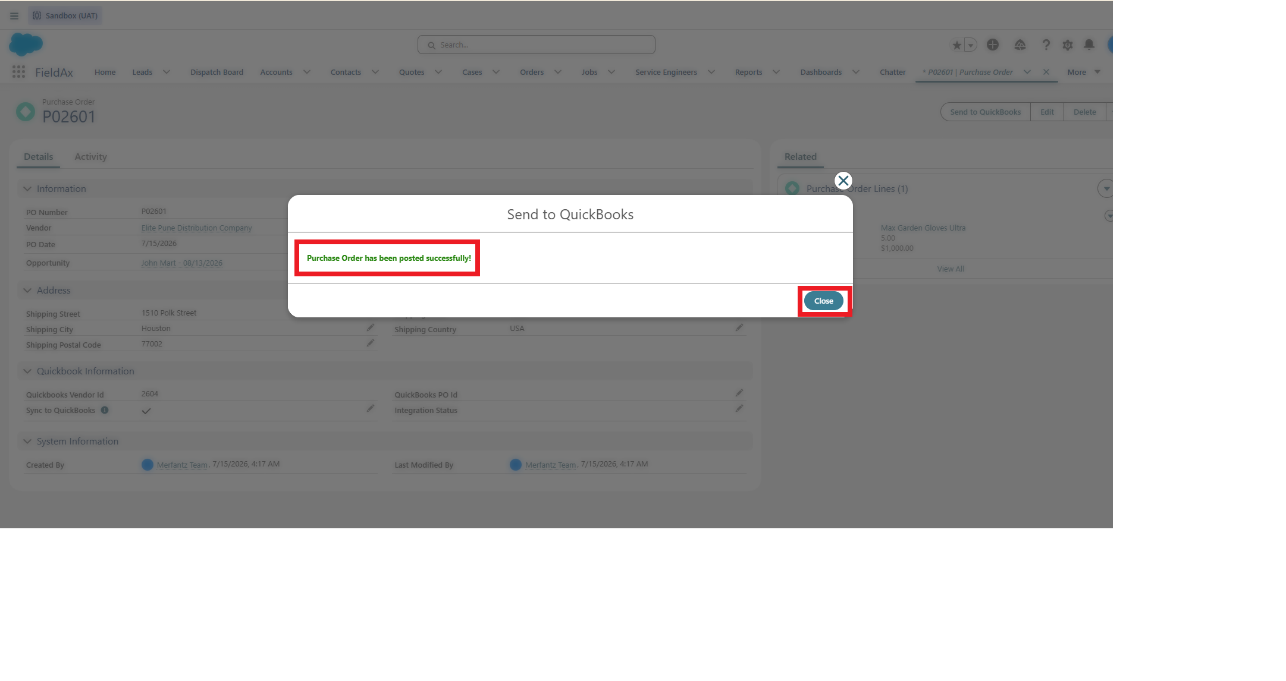
Confirmation checkbox before posting to QuickBooks.
Confirmation message after posting to QuickBooks.
Step 5: Check the Synchronization Status
After the Purchase Order is synchronized, check the following fields:
- QuickBooks Vendor ID: Shows the linked QuickBooks vendor information.
- Integration Status:
- Successful – Purchase Order was successfully synchronized.
- Pending – Synchronization is in progress.
- Failed – Synchronization was unsuccessful.
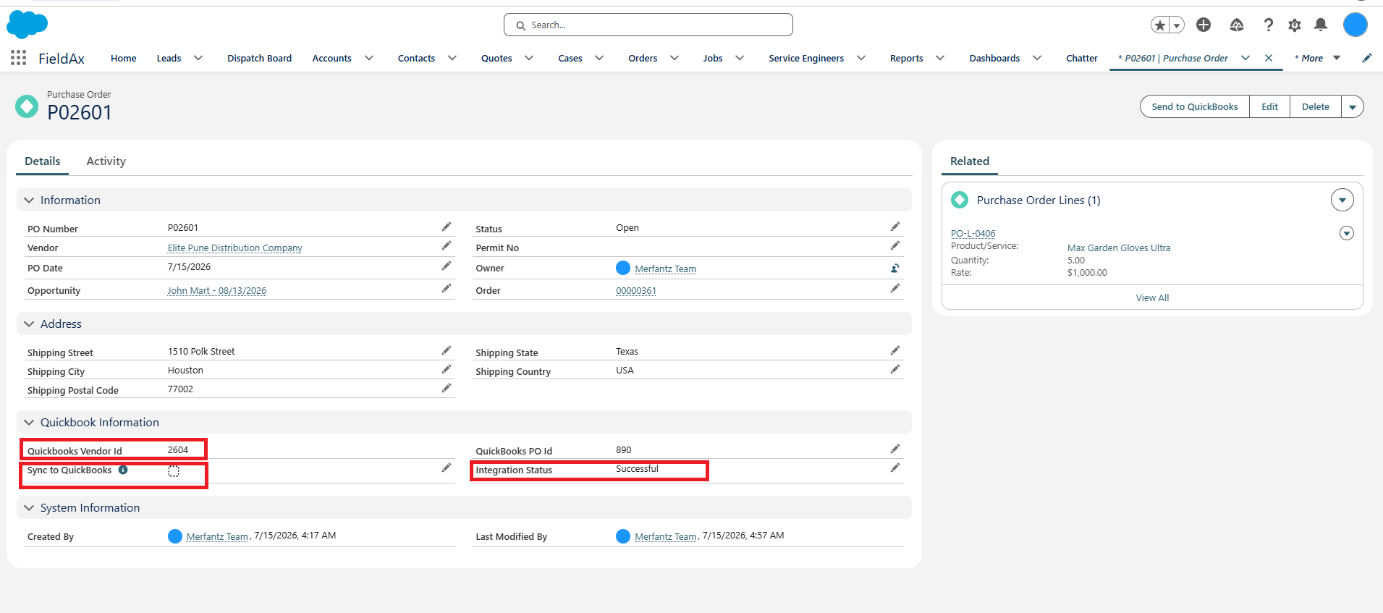
Purchase Order showing QuickBooks information and Integration Status.
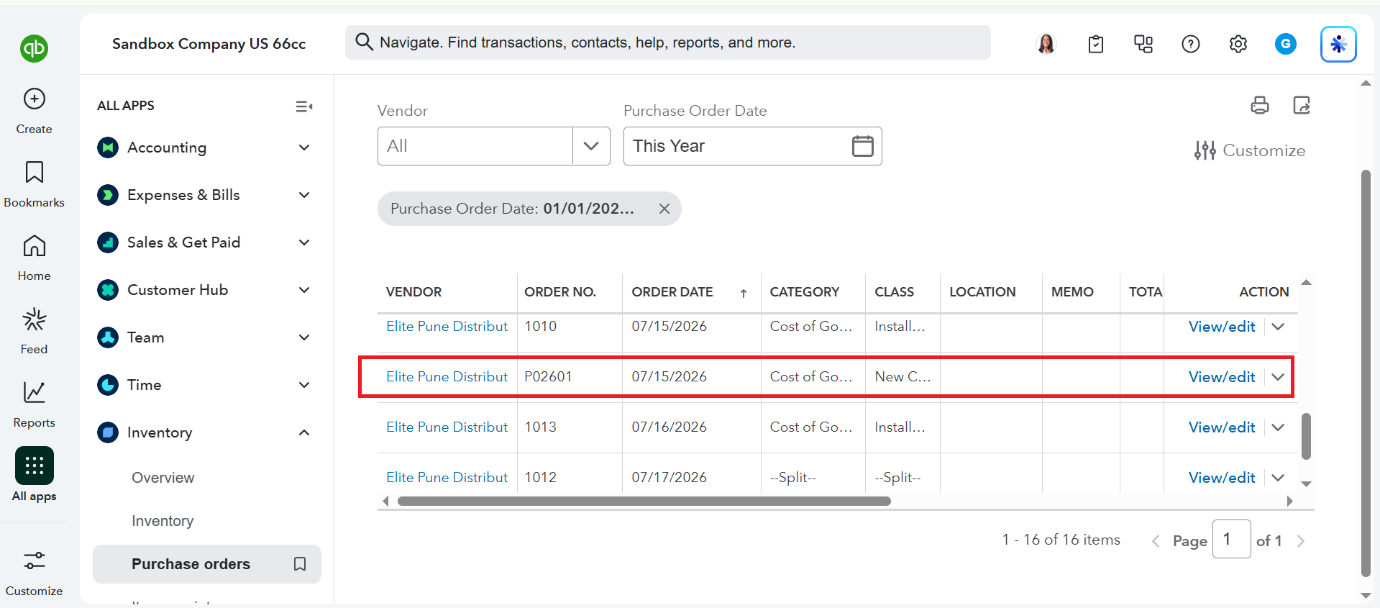
Purchase Order record showing the linked QuickBooks entry.
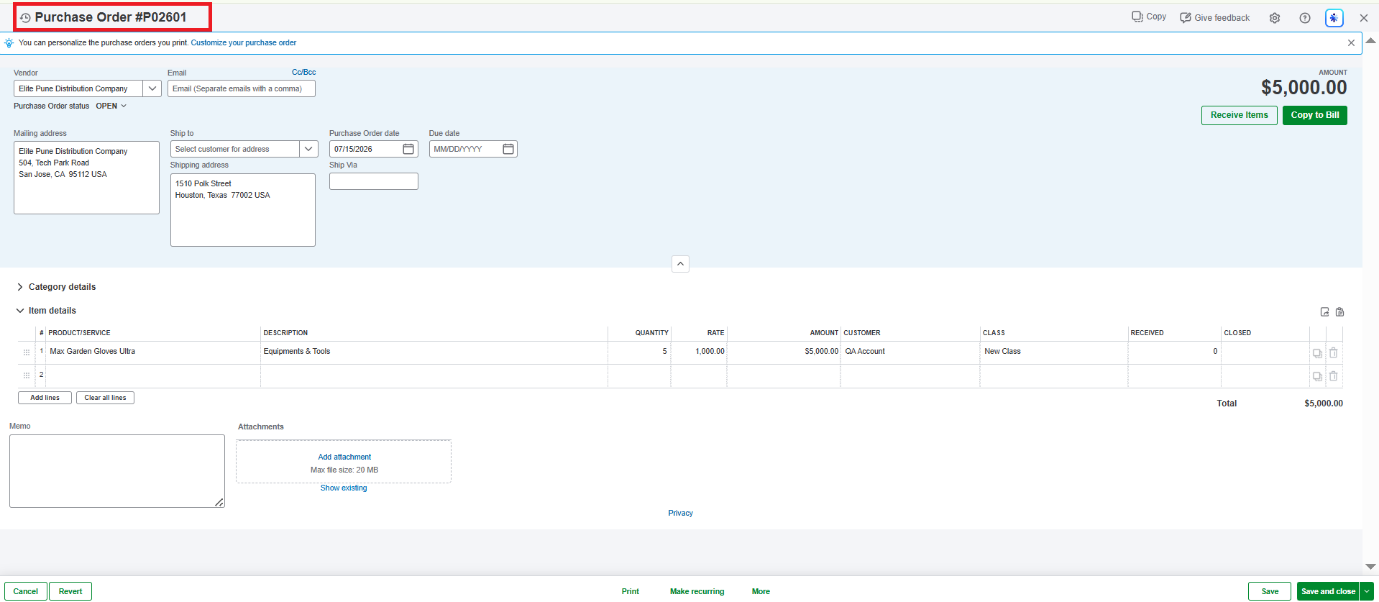
Purchase Order detail view in QuickBooks.
Purchase Order Flow at a Glance
QuickBooks
↓
Purchase Order Created / Updated
↓
Automatic Sync – Every 1 Hour
↓
Salesforce Purchase Order
↓
Purchase Order & Line Items Available in Salesforce
↓
Check Integration Status
Important
- Purchase Order synchronization is one-way: QuickBooks → Salesforce.
- Automatic synchronization runs every 1 hour.
- Purchase Orders and their Line Items are posted to Salesforce through the scheduled process.
- The Integration Status field helps users identify whether the synchronization was successful, pending, or failed.