
3 min read
Overview
Knowledge Articles provide a central place for technicians and office staff to store troubleshooting steps, best practices, common fixes, and other useful information for future reference.
When working on a Case or Job, users can search for relevant articles. If a solution is not already documented, a technician can also create a new Knowledge Article directly from the Case or Job.
1. Create a Knowledge Article
Step 1: Open Knowledge Articles
- Open the Knowledge Articles tab.
- Use the Search bar to find an existing article by name.
- Click New to create a new article.
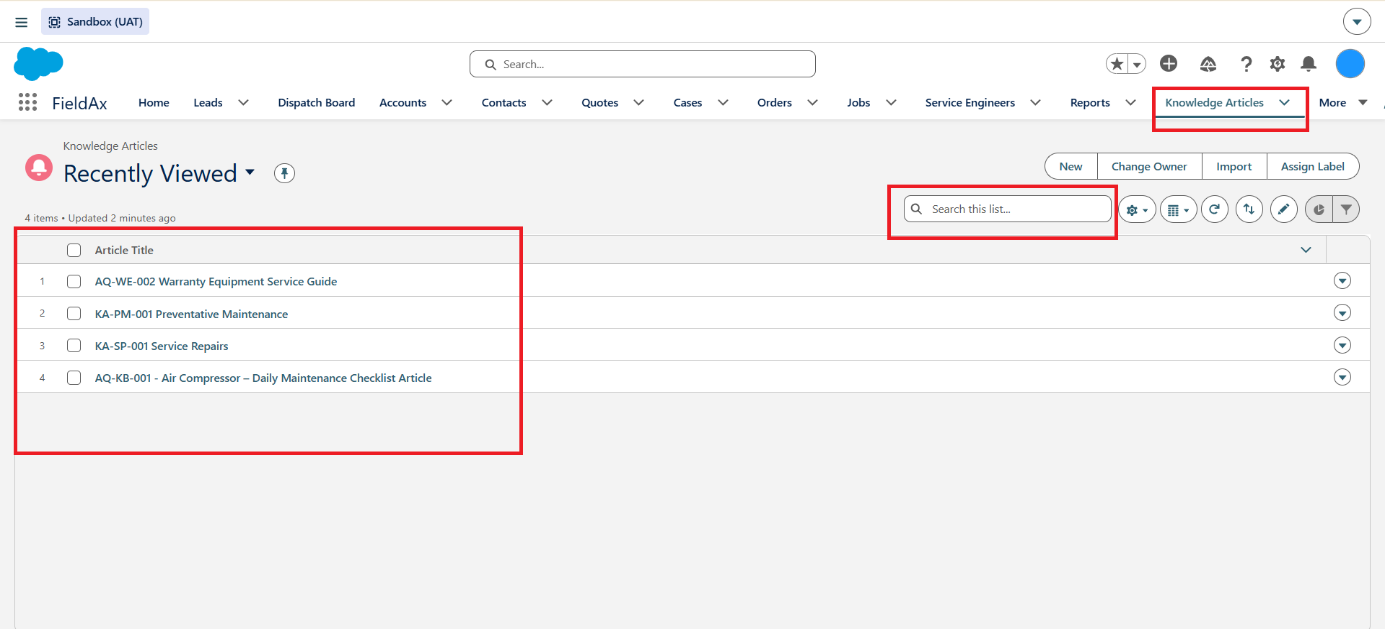
List of existing Knowledge Articles, with a search bar to find an article by name.
Step 2: Enter Article Details
Enter the required information:
- Article Title – Name of the article.
- URL Name – Optional name used for easy reference.
- Article Body – Add the troubleshooting steps, instructions, images, procedures, or other useful information.
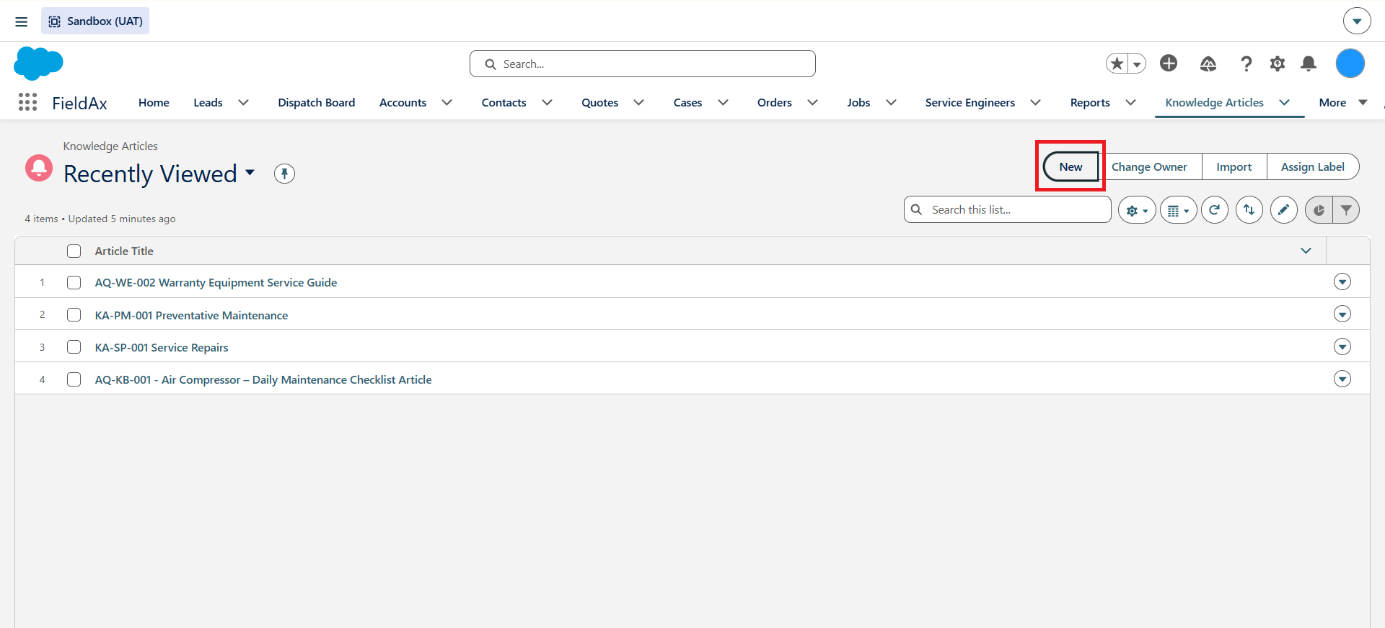
Knowledge Article details.
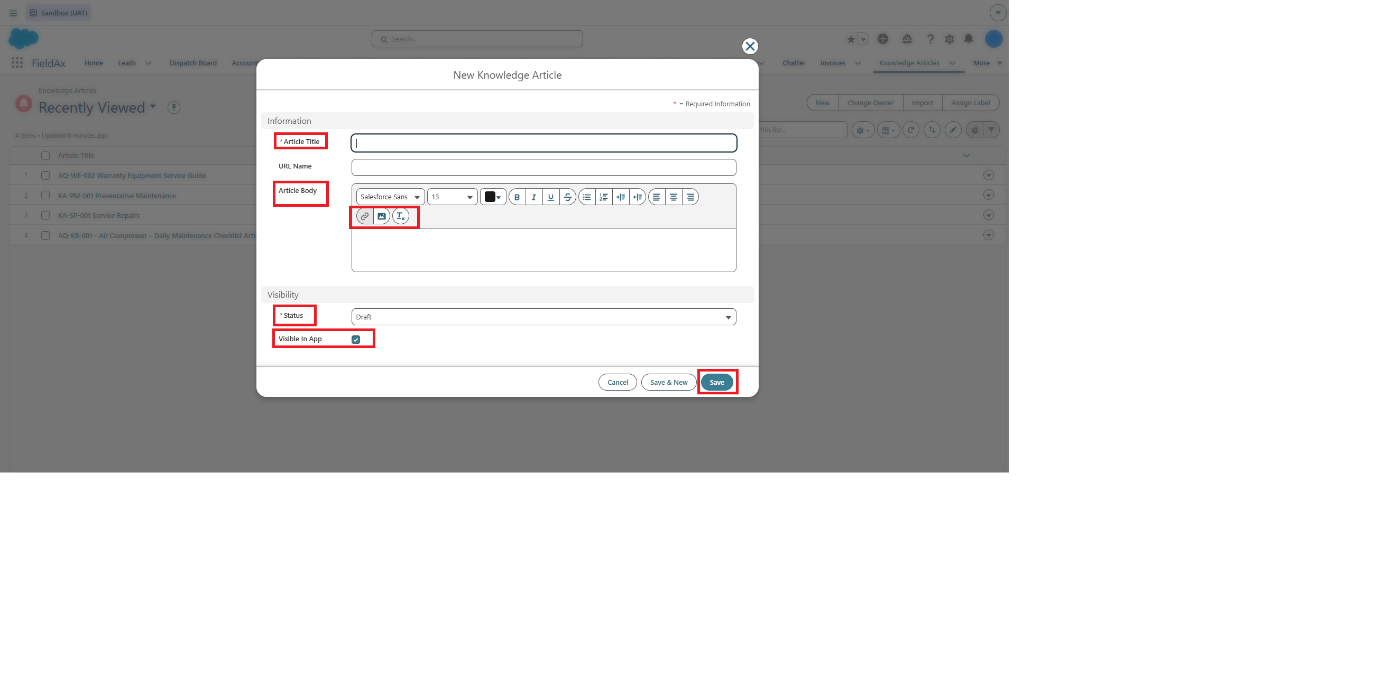 Knowledge Article form showing the Visible in App checkbox and the Save button.
2. Set the Article Status
Select the appropriate Visibility Status:
- Draft – Article is still being prepared.
- Review – Article is ready for checking.
- Published – Article is approved and available for use.
- Archived – Article is no longer active but retained for reference.
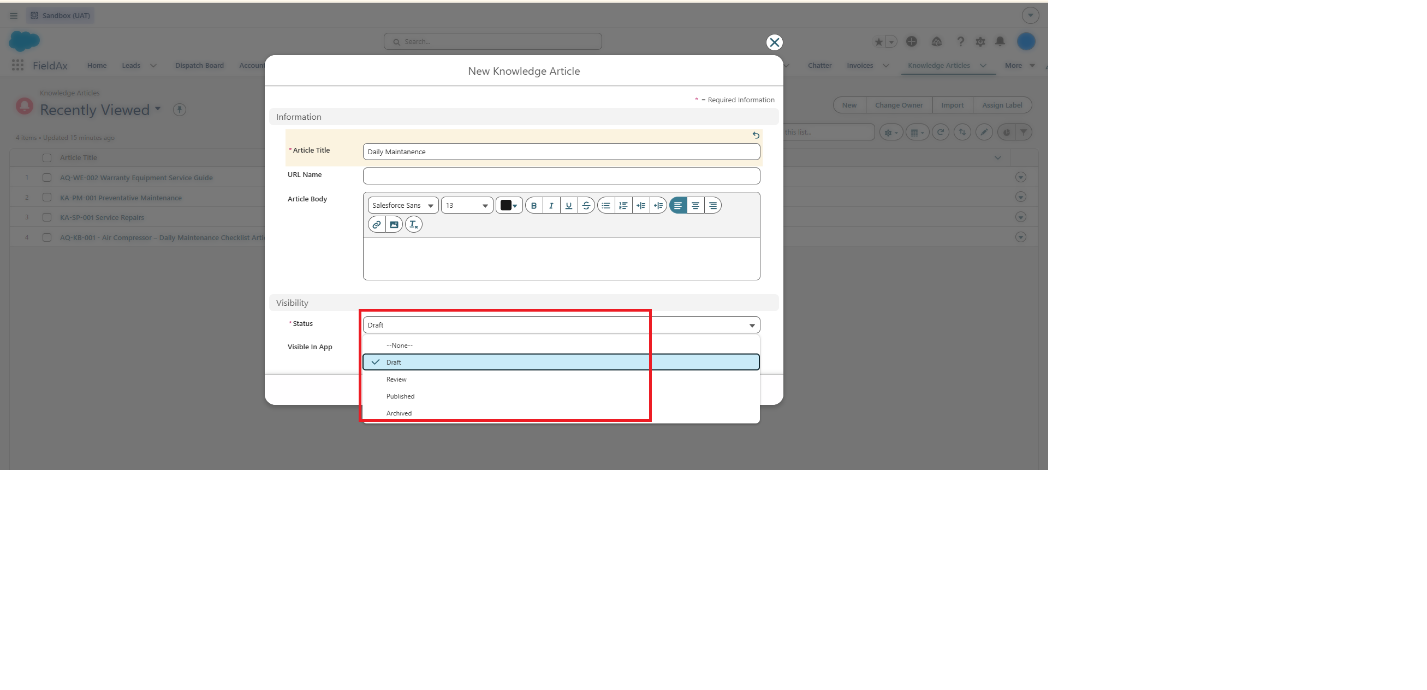
Knowledge Article Visibility Status.
3. Make the Article Available to Technicians
Turn on Visible in App so technicians can access the article from the FieldAx mobile app while working in the field.
Click Save once the article details are complete.
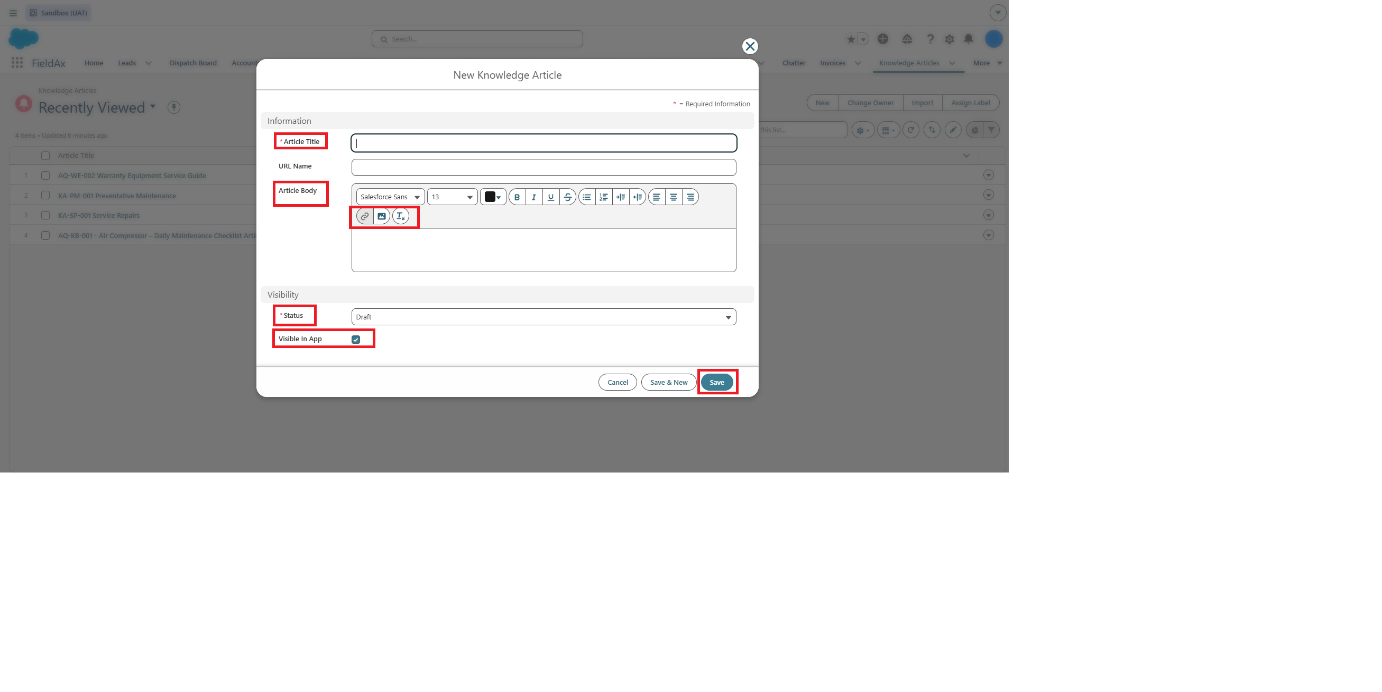
Visible in App and Save options.
4. Use Knowledge Articles from a Case
Knowledge Articles can be accessed directly from a Case.
- Open the Case record.
- Navigate to the Knowledge section.
- Articles related to the selected category are displayed.
- Use the Search bar to search by keyword or article title.
- Select the relevant article.
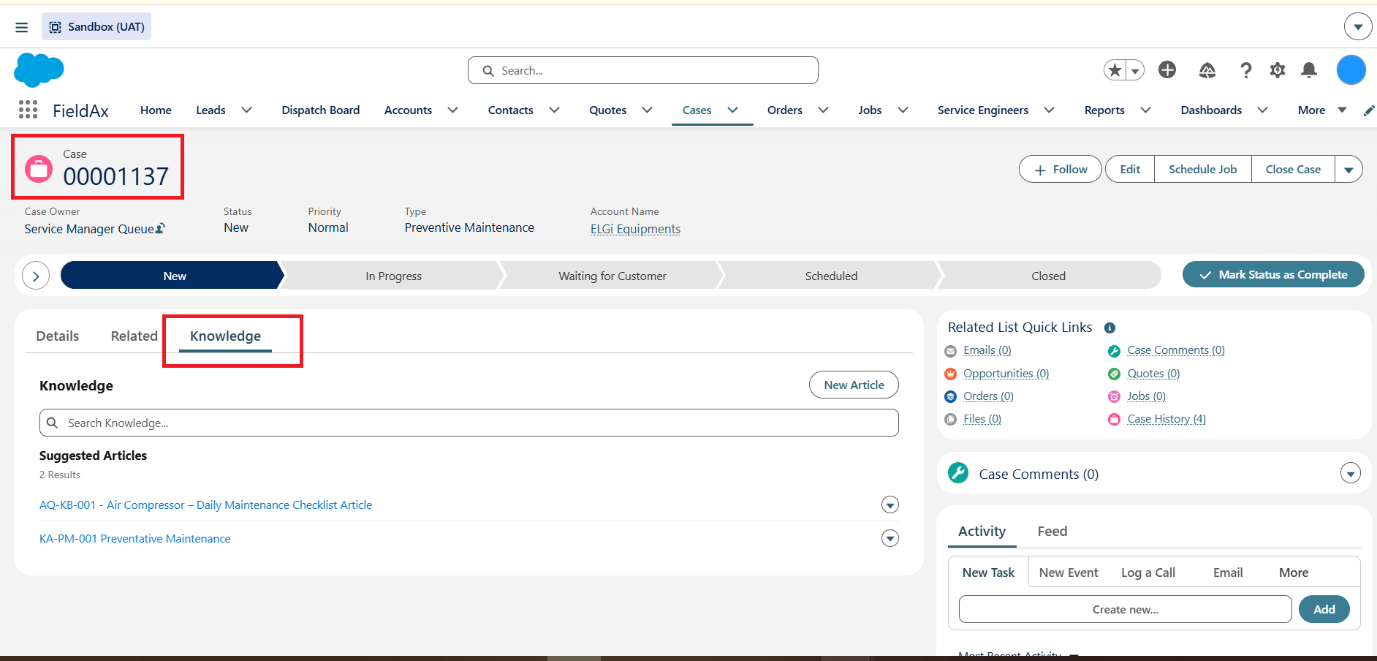
Knowledge section on the Case page.
5. Use Knowledge Articles from a Job
Knowledge Articles are also available directly from a Job.
- Open the Job record.
- Navigate to the Knowledge section.
- Review the suggested articles based on the selected category.
- Search using a keyword or article title if required.
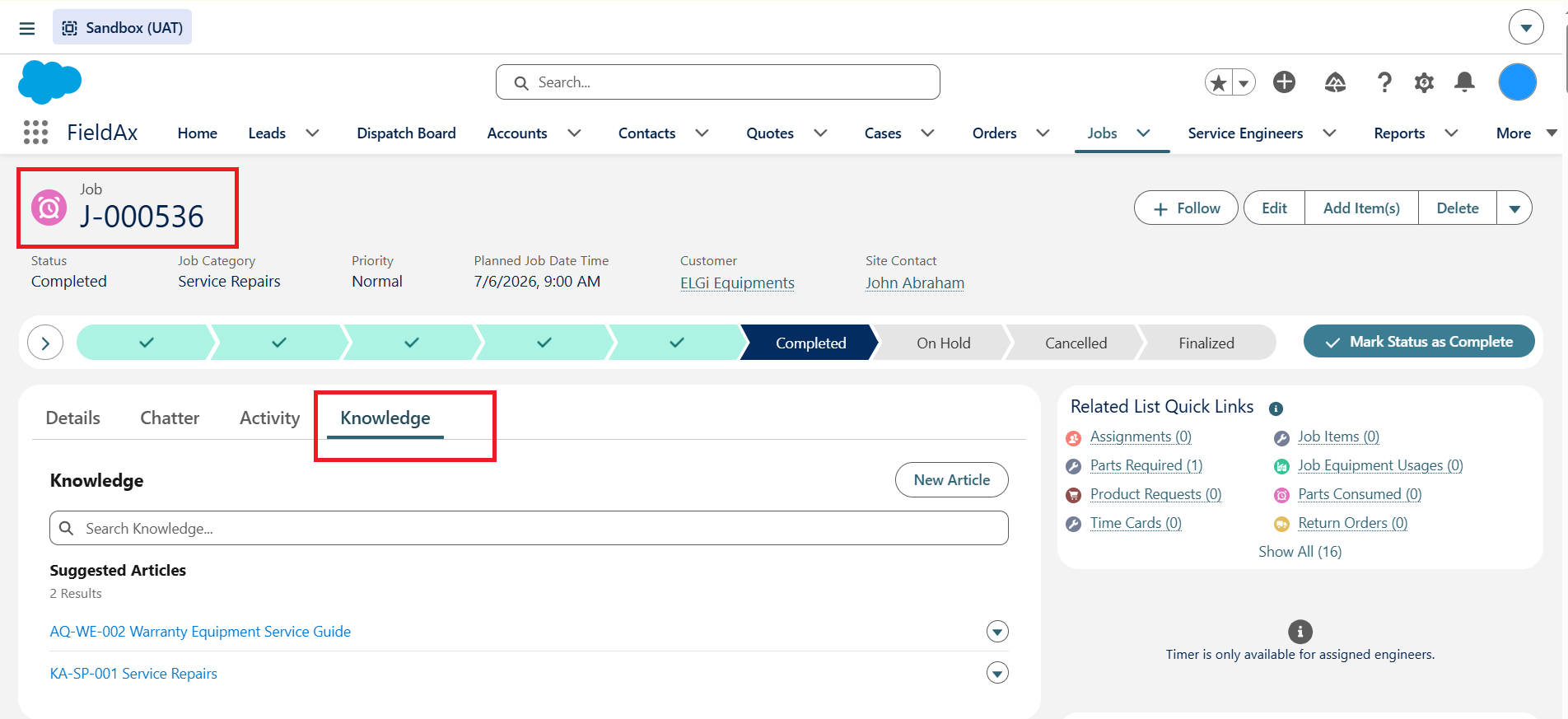
Knowledge section on the Job page.
6. Search or Create an Article While Working
If a technician needs help while working on a Case or Job:
- Search for an existing Knowledge Article.
- If the required solution is not available, create a new Knowledge Article directly from the Case or Job.
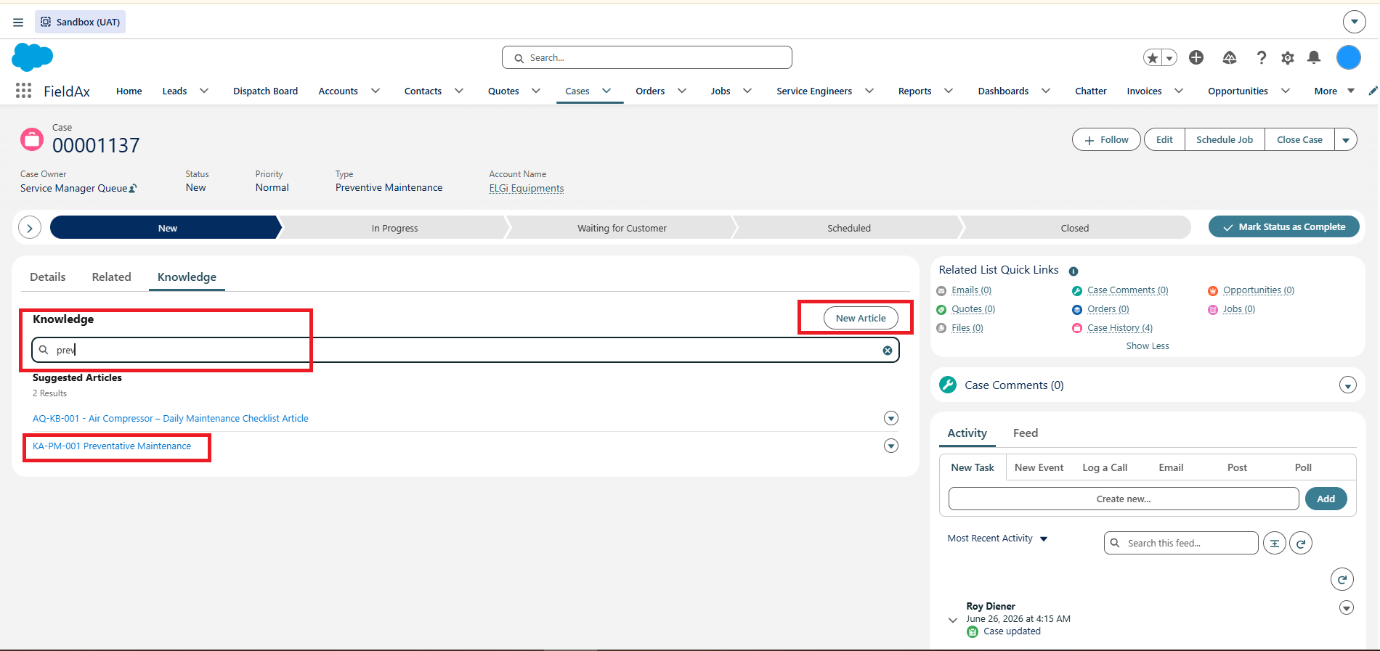
Search and Create Knowledge Article options.
7. Preview, Attach, or Open an Article
After finding an article, the technician can:
- Preview – Quickly review the article.
- Attach – Attach the article to the Case or Job.
- Open – View the complete article details.
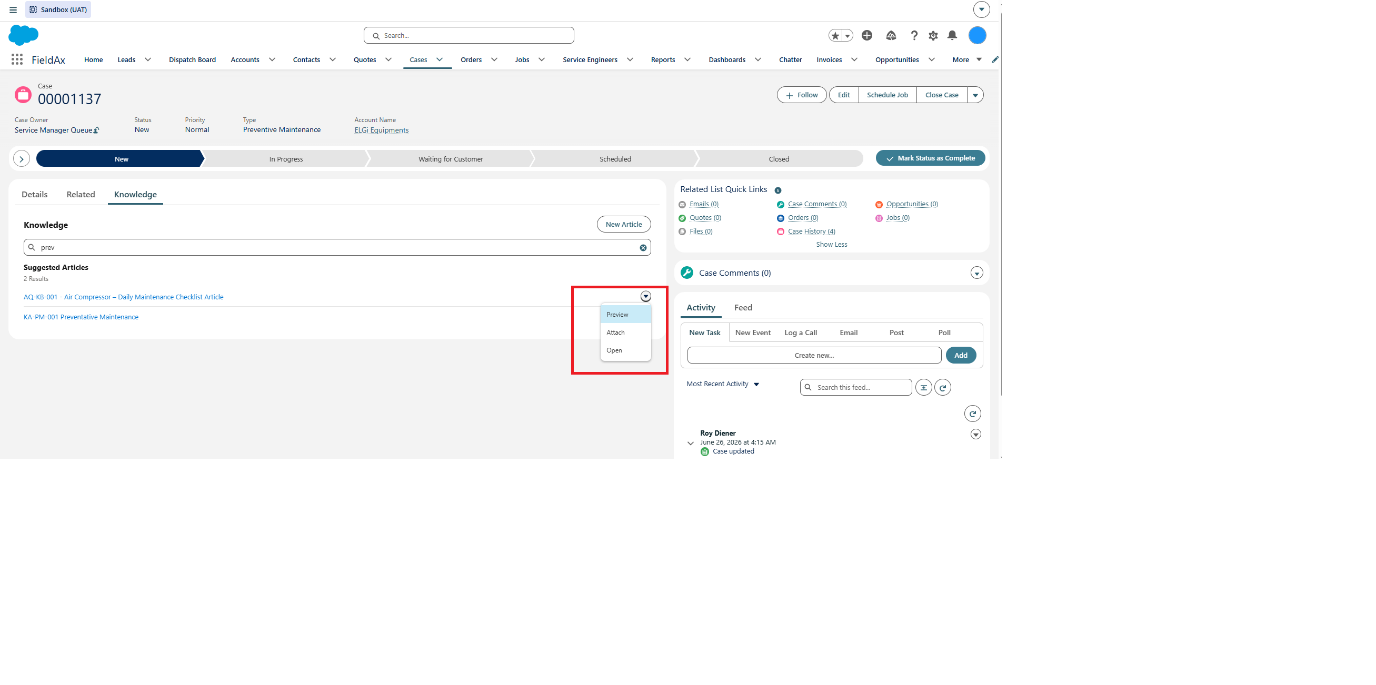
Preview, Attach, and Open options.
Knowledge Article Flow at a Glance
Create Article
↓
Add Title & Content
↓
Set Visibility Status
↓
Enable Visible in App
↓
Save / Publish
↓
Search from Case or Job
↓
Preview / Attach / Open
Important
Knowledge Articles help the team share solutions, reduce repeated troubleshooting, and help technicians resolve Cases and Jobs faster. New solutions discovered in the field can be documented and reused by the entire team.