
1. Purpose
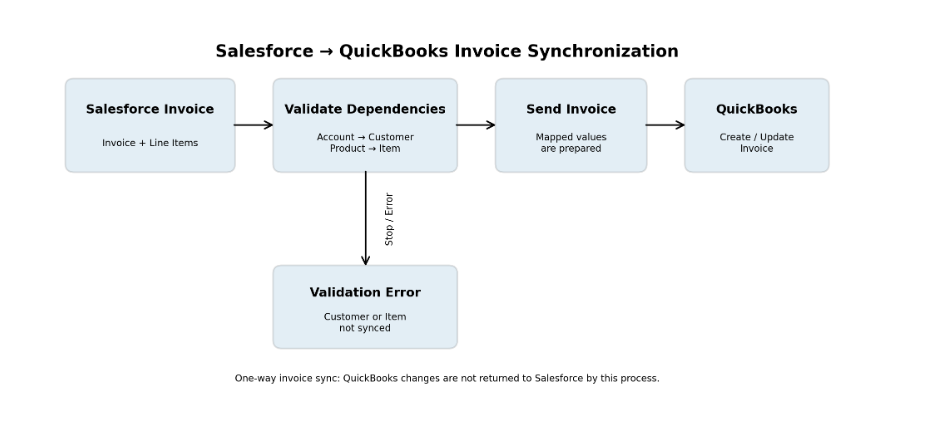
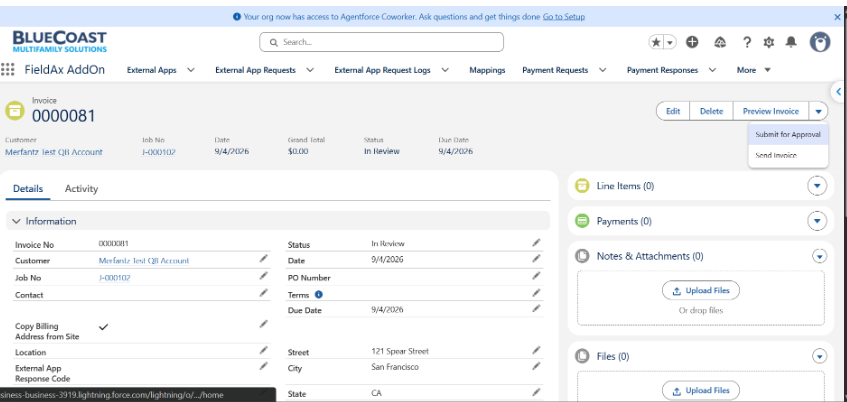
This document explains the invoice synchronization process from Salesforce to QuickBooks Online. The process is one-way for invoices: Salesforce is the source and QuickBooks is the target. The synchronization starts when the user clicks the Send Invoice button on the Salesforce Invoice record.
| Item | Description |
| Direction | Salesforce → QuickBooks Online only |
| Trigger | Send Invoice button on the Salesforce Invoice record |
| Data sent | Mapped Invoice fields and Invoice Line Item fields |
| Target | QuickBooks Invoice |
| Operation | Create a new invoice or update an existing invoice |
| Required dependencies | Account must be synced as a QuickBooks Customer; Products must be synced as QuickBooks Items |
Salesforce’s QuickBooks Online connector supports invoice creation/update actions and customer/item operations, which aligns with the dependency model described here.
2. Invoice Sync Process
When the user clicks Send Invoice, the integration reads the Salesforce Invoice and its related Invoice Line Items. The mapped values are prepared for QuickBooks and submitted as an invoice request.
| Step | Process |
| 1. Open Invoice | User opens the Invoice record in Salesforce. |
| 2. Check Account | The Invoice Account must already have a corresponding QuickBooks Customer. |
| 3. Check Products | Every Product used by the Invoice Line Items must already have a corresponding QuickBooks Item. |
| 4. Click Send Invoice | The synchronization process starts. |
| 5. Build Payload | Mapped Invoice and Invoice Line Item values are prepared. |
| 6. Create / Update | QuickBooks receives the invoice request and creates or updates the invoice. |
| 7. Process Result | The success or error response is handled by the integration. |
3. Create vs. Update
The integration determines whether the Salesforce Invoice represents a new QuickBooks invoice or an existing QuickBooks invoice. For a new invoice, a QuickBooks invoice is created. For an already synchronized invoice, the existing QuickBooks invoice is updated using its stored QuickBooks reference/identifier.
| Scenario | Expected Behavior |
| No existing QuickBooks Invoice reference | Create a new QuickBooks Invoice. |
| Existing QuickBooks Invoice reference | Update the existing QuickBooks Invoice. |
| Required Customer/Item missing | Stop the process and return an error. |
4. Data Sent
| Salesforce Data | QuickBooks Usage |
| Invoice header | Invoice date, number, customer, address, terms and other mapped fields. |
| Invoice Account | Used to identify the QuickBooks Customer. |
| Invoice Line Item | Used to create/update each QuickBooks invoice line. |
| Product | Used to identify the QuickBooks Item for each line. |
| Quantity / Price / Amount | Used for the invoice line calculation and values. |
| Description / other mapped fields | Passed to corresponding QuickBooks invoice fields where configured. |
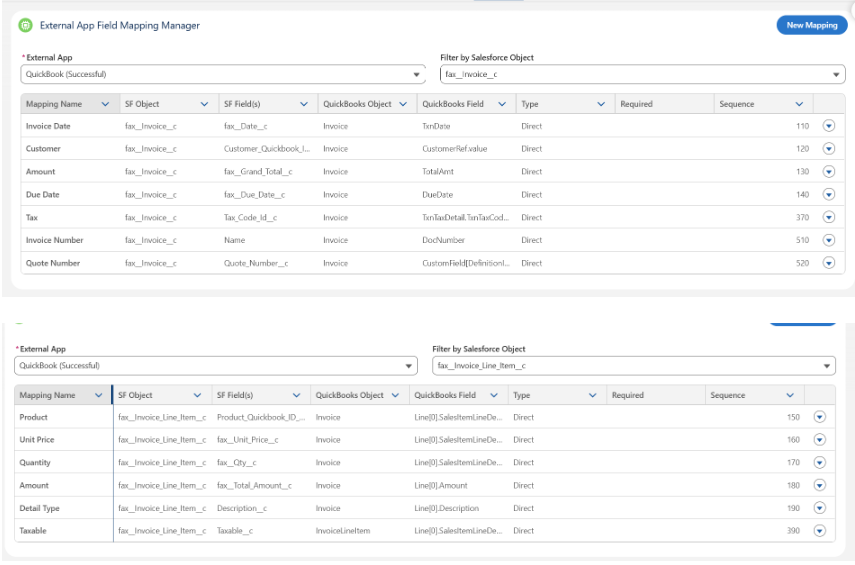
The Invoice record in Salesforce contains a QuickBooks Tax lookup field that references the corresponding QuickBooks Tax record. When a QuickBooks Tax is selected, the associated tax percentage from the QuickBooks Tax record is applied to the invoice.
Important: The tax percentage cannot be sent directly as a tax value to the QuickBooks Invoice. The invoice must reference the appropriate QuickBooks Tax record rather than sending the tax percentage itself.
5. Customer and Product Prerequisites
The Account and Product synchronization is a prerequisite for sending an invoice. The invoice cannot be correctly created in QuickBooks if the customer or an invoice-line item cannot be resolved.
5.1 Account → QuickBooks Customer
- The Salesforce Invoice must have a valid Account.
- The Account must already be synchronized to QuickBooks as a Customer.
- The integration must have the QuickBooks Customer reference/ID needed for the invoice.
- If the Account is not synchronized, Send Invoice should fail rather than creating an invoice with an unresolved customer.
5.2 Product → QuickBooks Item
- Each Invoice Line Item must reference the required Salesforce Product.
- Every referenced Product must already be synchronized to QuickBooks as an Item.
- The integration must have the QuickBooks Item reference/ID for each invoice line.
- If any required Product is missing from QuickBooks, the invoice send can fail.
6. Why the Dependencies Matter
A QuickBooks invoice contains a customer reference and invoice lines that reference items. Therefore, the Salesforce invoice cannot be sent successfully by relying only on the invoice amount and description. The integration must be able to identify the QuickBooks Customer and the QuickBooks Item for each applicable line.
The QuickBooks invoice API example uses a CustomerRef for the customer and ItemRef for an invoice line, illustrating why these related records are required for an invoice payload.
7. Error Scenarios
| Error Scenario | Result / Resolution |
| Account is not synced | Invoice cannot resolve the QuickBooks Customer. Sync the Account first. |
| Product is not synced | Invoice line cannot resolve the QuickBooks Item. Sync the Product first. |
| Required invoice field is missing | Correct the Salesforce Invoice and resend. |
| QuickBooks connection/authentication issue | Resolve the connection and retry. |
| Existing invoice cannot be updated | Verify the QuickBooks Invoice reference and target record. |
8. User Procedure
- Open the required Invoice record in Salesforce.
- Verify the Invoice Account.
- Verify that the Account is already synced to QuickBooks as a Customer.
- Review all Invoice Line Items.
- Verify that every Product used on the Invoice is already synced to QuickBooks as an Item.
- Click Send Invoice.
- Wait for the integration result.
- If successful, verify the QuickBooks invoice reference/status stored on the Salesforce Invoice, if configured.
- If an error occurs, correct the dependency or invoice data and send the invoice again.
9. Troubleshooting Checklist
| Check | Question |
| Invoice | Are all required invoice fields populated? |
| Account | Is the Invoice Account populated? |
| Customer Sync | Does the Account have a QuickBooks Customer reference? |
| Line Items | Are all required Invoice Line Items present? |
| Products | Does every line Product have a QuickBooks Item reference? |
| Create/Update | Does the Invoice already have an existing QuickBooks Invoice reference? |
| Connection | Is the QuickBooks integration connection/authentication active? |
| Error Message | What exact error was returned by the integration/QuickBooks? |
10. Scope
| Included | Not Included |
| Salesforce Invoice → QuickBooks Invoice | QuickBooks Invoice → Salesforce Invoice |
| Invoice create/update | Automatic pull of QuickBooks invoice changes |
| Invoice Line Item synchronization | Separate payment synchronization |
| Account/Customer dependency | Unrelated QuickBooks processes |
| Product/Item dependency | Manual QuickBooks changes being pushed back to Salesforce |
11. Summary
The invoice process is a controlled one-way push from Salesforce to QuickBooks. The user starts the process by clicking Send Invoice. The integration sends the mapped Invoice and Invoice Line Item values to QuickBooks and creates or updates the corresponding invoice. Before sending, the Account must be synced as a QuickBooks Customer and every required Product must be synced as a QuickBooks Item. If either dependency is missing, the invoice synchronization can fail and must be corrected before retrying.
Reference: Salesforce QuickBooks Online Connector documentation.
12. QuickBooks Invoice ID (Important Field)
The **QuickBooks Invoice ID** field on the Salesforce Invoice record stores the unique Invoice ID returned by QuickBooks after the invoice is successfully synchronized.
Purpose of this field:
- Stores the QuickBooks Invoice ID after a successful Create or Update operation.
- Used to identify the corresponding invoice in QuickBooks.
- Used by the integration to determine whether the invoice should be created or updated during the next synchronization.
- Helps support and testing teams quickly locate the exact invoice in QuickBooks using the stored ID.
Salesforce Invoice Record Example
The screenshot below shows the **QuickBooks Information** section on the Invoice record. After synchronization, the **QuickBooks Invoice ID** field is populated with the corresponding QuickBooks invoice identifier.
Above highlighted Id is the QuickBooks Invoice Id.
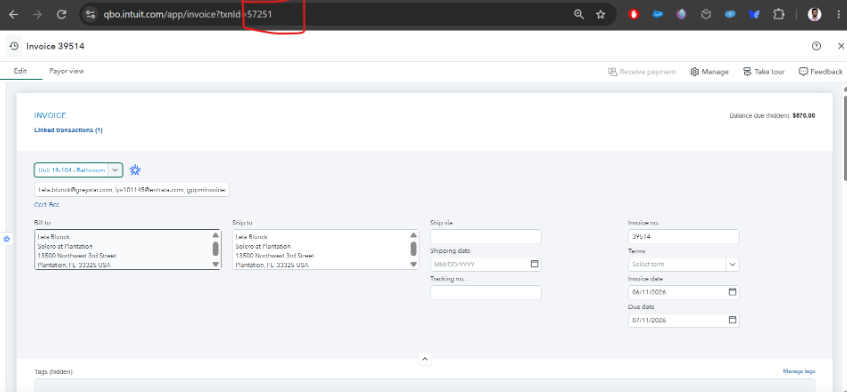
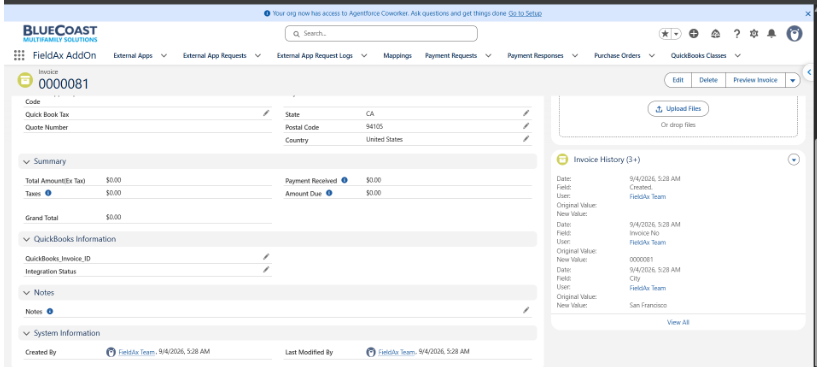
Figure: QuickBooks Information section in the Salesforce Invoice record.
Note:
This field is the primary reference used by the Salesforce–QuickBooks integration to identify the matching invoice in QuickBooks. Whenever the user clicks **Send Invoice** again, the integration uses this value to update the existing QuickBooks invoice instead of creating a duplicate invoice.